Relying on users to configure their own mail clients can often lead to unexpected issues. A user enters the wrong port, picks STARTTLS where SSL was expected, or misspells the server name, and the result is often a help desk ticket.
With AutoDiscover, the user only needs to enter their email address and password and MDaemon returns the rest. If you manage MDaemon for your own company or for several clients as an MSP, setting it up correctly once can save you from future headaches.
This guide covers the same ground as our video walkthrough and adds reference detail you can keep open while you edit DNS.
How AutoDiscover Works
AutoDiscover allows users to configure their email client with just an email address and password, rather than having to enter server and port settings manually. The client takes the domain from the user's email address, finds the AutoDiscover endpoint through DNS, authenticates, and receives the host names, ports, and encryption settings for each protocol your server offers.
MDaemon supports AutoDiscover for ActiveSync, IMAP, POP, SMTP, CalDAV/CardDAV, and XMPP. Beginning with MDaemon v26, it can also return the XML API URL to clients that are allowed to use it. Clients that use AutoDiscover include Microsoft Outlook, eM Client, Thunderbird, MDaemon Connector for Outlook, and the native Exchange/ActiveSync account setup on iOS and Android.
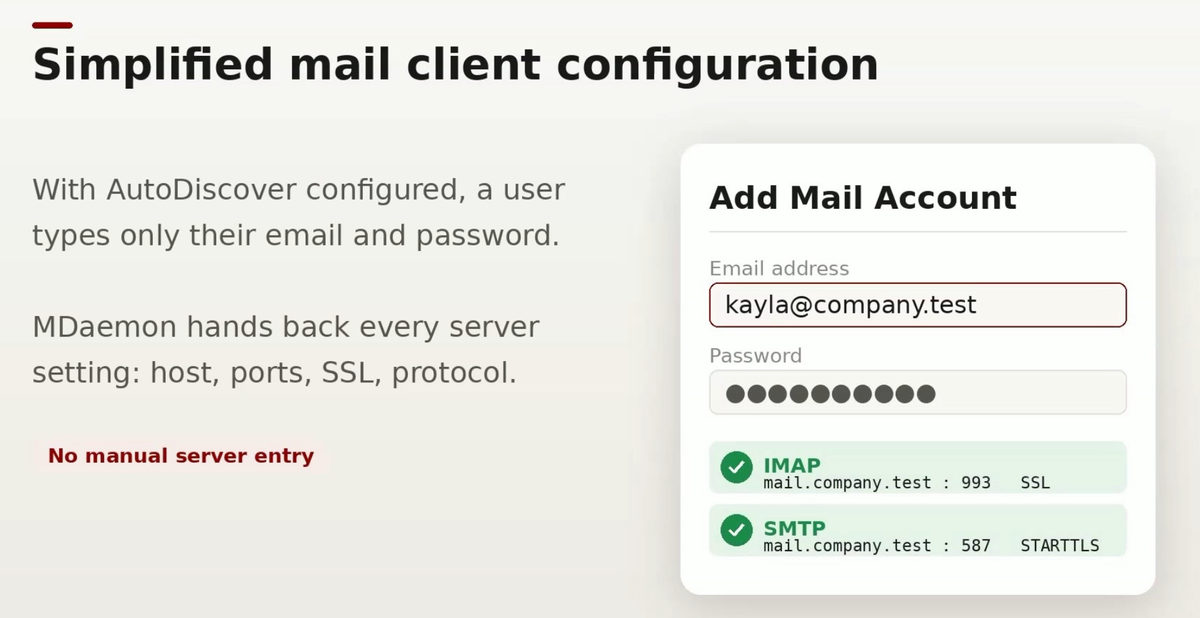
MDaemon builds each response from your server's current settings and your DNS records. If you change a port in MDaemon, AutoDiscover will report that new port.
Before You Start: Confirm the Prerequisites
In MDaemon, AutoDiscover is enabled by default. And while this feature is not currently exposed in MDaemon Remote Administration, you can enable or disable it by launching an MDaemon configuration session via the Windows Start menu. Simply right-click the AutoDiscover Service under the Servers panel to enable it.
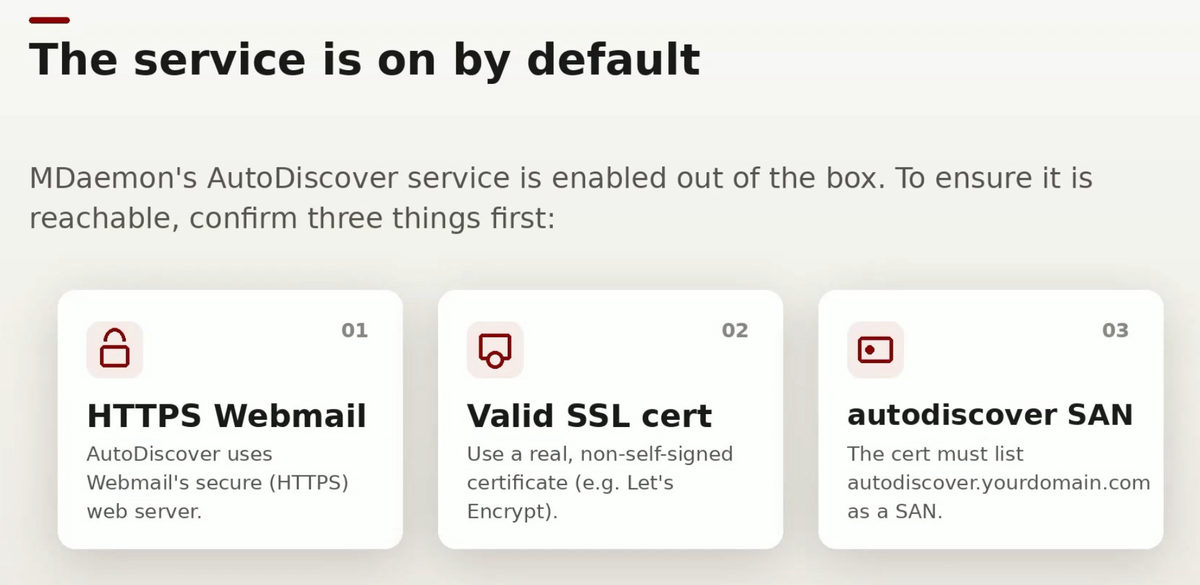
Confirm these three items before you adjust DNS records or settings.
HTTPS is enabled for Webmail
AutoDiscover runs on Webmail's built-in web server, so Webmail must accept connections over HTTPS.
In MDaemon Remote Administration, these options can be found under Main » Webmail Settings » SSL & HTTPS and are mirrored under Security » SSL & TLS » Webmail. Choose "HTTPS only" or "HTTP redirected to HTTPS," and keep the HTTPS port on 443 so clients don't need to specify a port.
The certificate is trusted, not self-signed
Most clients will silently refuse a self-signed certificate during auto-configuration. The free option is Let's Encrypt, which can be found in MDaemon Remote Administration under Security » SSL & TLS » Let's Encrypt. MDaemon renews the certificate automatically.
The certificate lists autodiscover.yourdomain.com
Enter autodiscover.yourdomain.com in the Let's Encrypt Alternate host names field. You don't need to add your default domain's SMTP host name, because it is included automatically. Let's Encrypt validates every host name with an HTTP challenge. Make sure the new host name already resolves to your server, and that Webmail is reachable on port 80 while the script runs.
Required DNS Records for Autodiscover
AutoDiscover depends on two kinds of public DNS records working together.
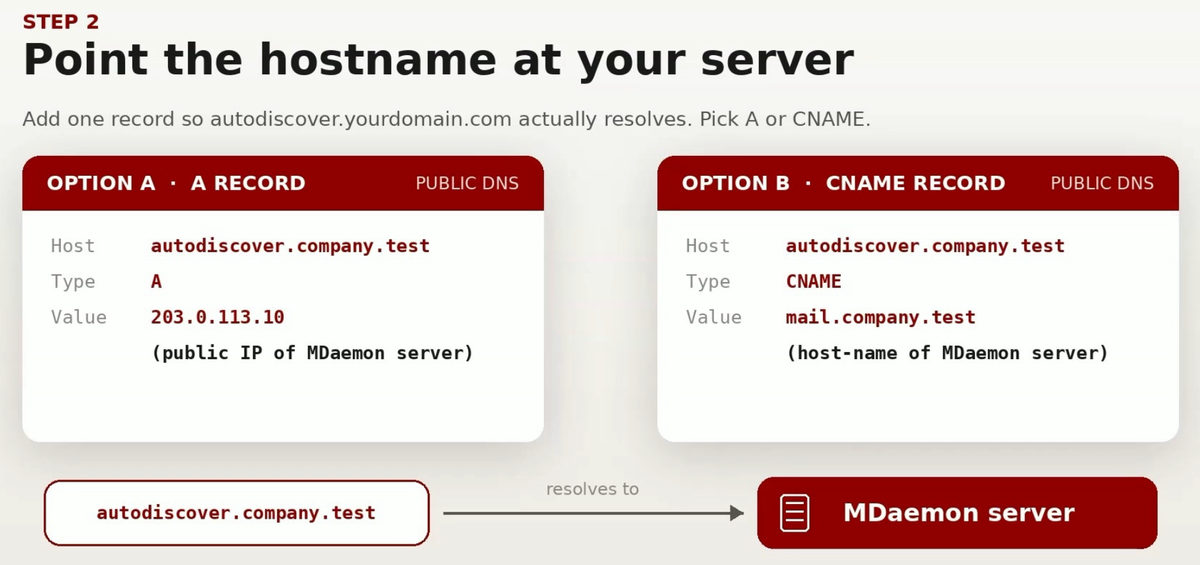
SRV records tell clients which host and port to use for each service. An A or CNAME record makes autodiscover.yourdomain.com resolve to your MDaemon server.
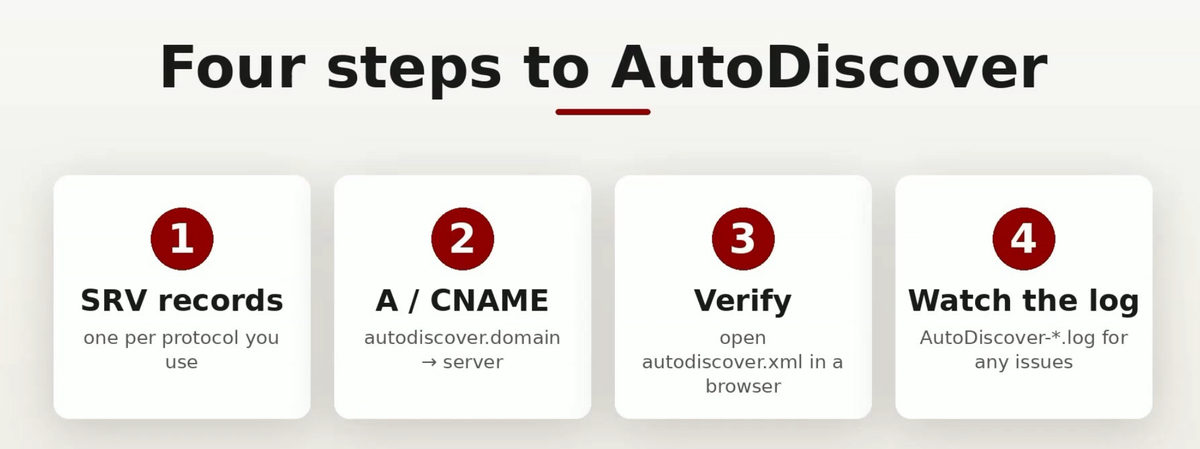
Step 1: Create the SRV Records
Create an SRV record for each protocol your users connect with. In the examples below, replace company.test with your own domain. Every record uses protocol _tcp, priority 0, weight 0, and target autodiscover.company.test.
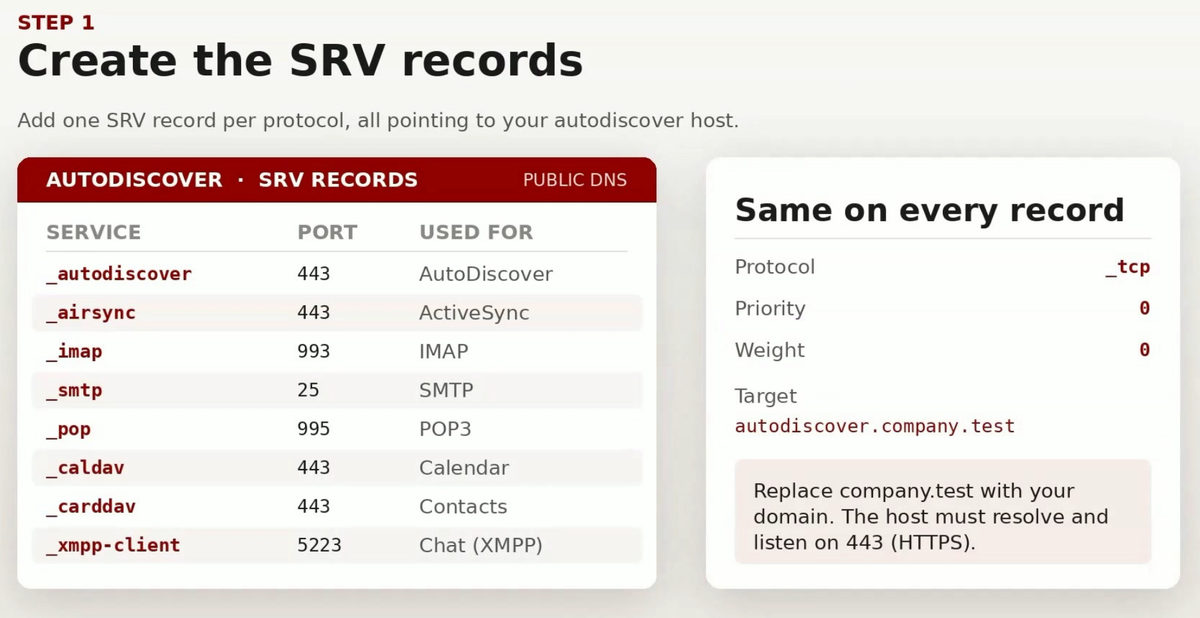
A few practical notes:
- Only publish what you use. If nobody uses POP3, leave out _pop.
- Use client-facing ports. While MDaemon's knowledge base example shows port 25 for _smtp, you can also use 465 or 587 for secure connections instead. Port 25 is for server-to-server delivery and is often blocked on residential and mobile networks, so publish a submission port for clients: RFC 8314 recommends implicit TLS on port 465, however, an alternative would be to use 587 with STARTTLS.
- Consider the variants some clients query. You can add _caldavs and _carddavs records if your clients request them. Some clients also look for _imaps, _pop3s, or _submission.
Step 2: Point the Host Name at Your Server
Next, create a record for autodiscover.company.test in public DNS. You have two options.
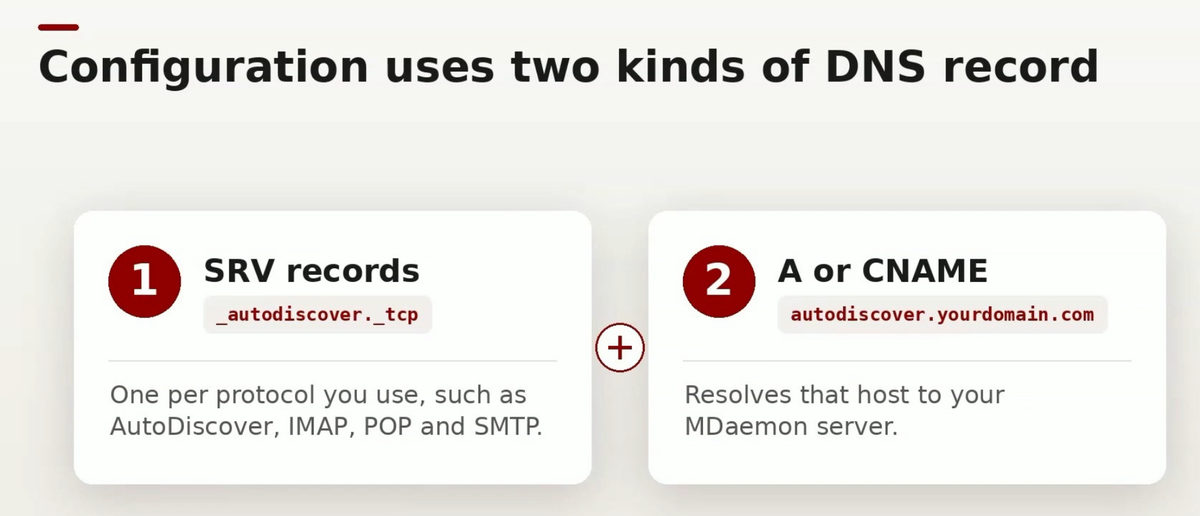
- Option A, A record: autodiscover.company.test points to your MDaemon server's public IP.
- Option B, CNAME record: autodiscover.company.test points to your server's host name (for example, mail.company.test).
Either option works for clients that go straight to autodiscover.company.test. If you use your SRV records heavily, prefer the A record. RFC 2782 states that an SRV target "MUST NOT be an alias," so it needs its own address record. If you would rather keep the CNAME, point the SRV targets at mail.company.test instead.
How a Client Finds Your Settings
Knowing the lookup sequence makes failures much easier to diagnose.
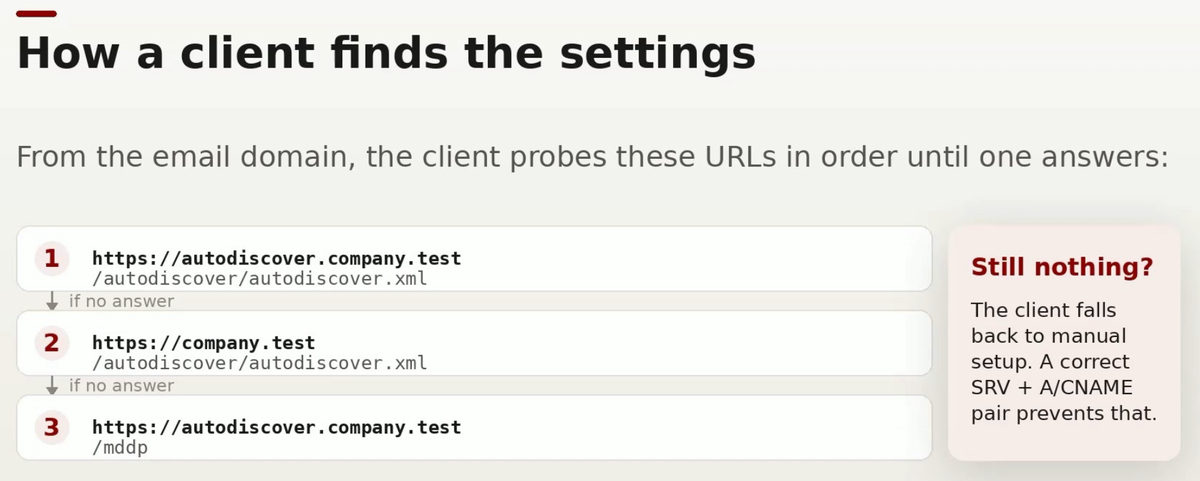
Starting from the email domain, a client tries a series of HTTPS locations until one answers: https://autodiscover.company.test/autodiscover/autodiscover.xml, https://company.test/autodiscover/autodiscover.xml, and MDaemon's own discovery endpoint at https://autodiscover.company.test/mddp. Clients that fully support the service also look up the _autodiscover._tcp SRV record to find the right host. The exact order varies from client to client, so don't rely on any one path. If nothing answers, the user falls back to manual setup, which is what you are trying to avoid.
Step 3: Verify That the Service Responds
Once DNS has propagated, open https://autodiscover.company.test/autodiscover/autodiscover.xml (where company.test is your domain) in a browser.
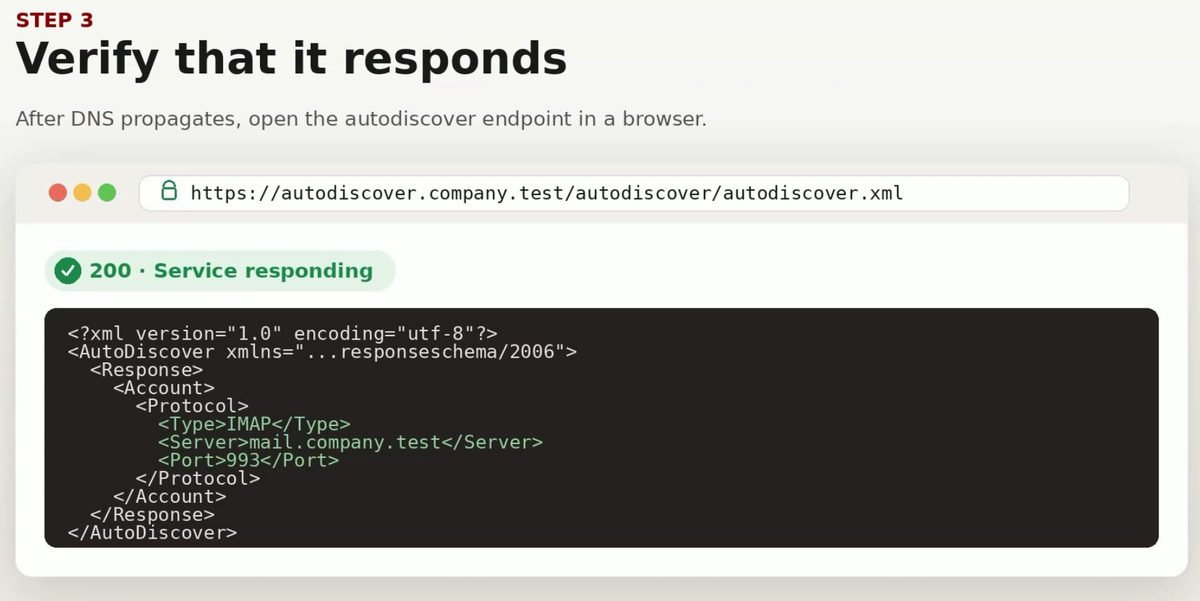
You're looking for three things:
- The page loads over HTTPS without a certificate warning. A warning means the SAN or the trust chain is wrong.
- MDaemon's AutoDiscover service responds rather than timing out or returning a different site.
- The response reflects your server, such as an IMAP entry for mail.company.test on port 993.
A plain browser visit may show only a basic service status page. The full account-specific XML goes to clients after they send an authenticated request. For a complete end-to-end test, add a real account in Outlook, eM Client, or a phone.
Step 4: Troubleshoot with the AutoDiscover Log
MDaemon records every AutoDiscover request in a daily log, \MDaemon\Logs\AutoDiscover-YYYY-MM-DD.log. Each entry shows the connecting IP, the SRV lookups performed, whether SSL was used, the client's user agent, and whether the account authenticated.
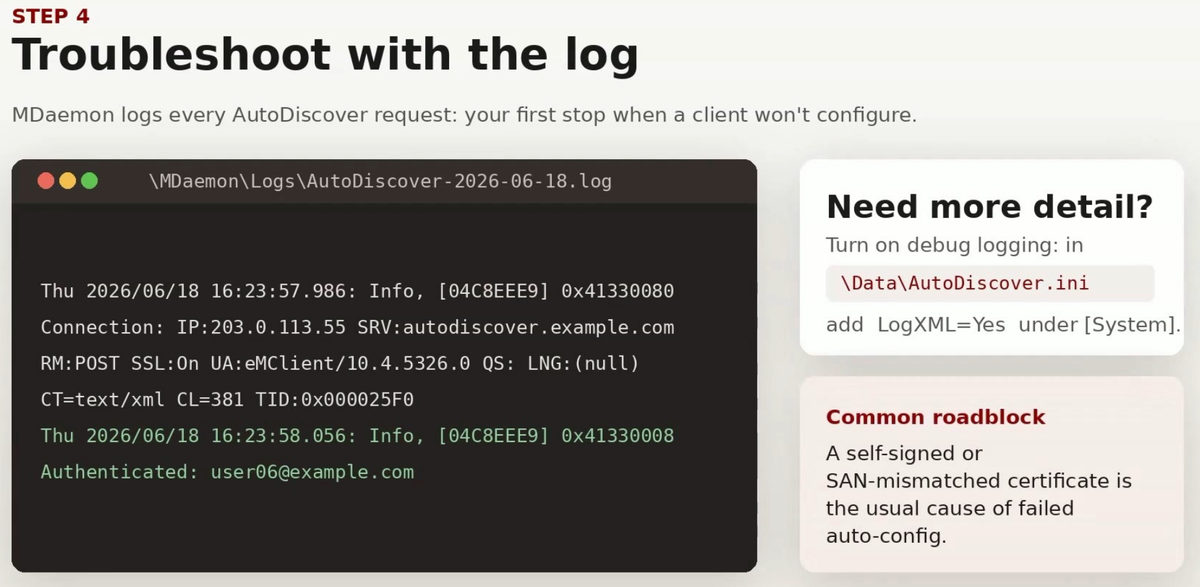
When you need to see the full XML exchange, open \MDaemon\Data\AutoDiscover.ini in a text editor and add LogXML=Yes under the [System] section. Turn it back off (LogXML=No) once you're done, because debug logging grows quickly. Requests to the /mddp endpoint are logged separately in MDDP-YYYY-MM-DD.log.
Quick Troubleshooting Checklist
- Certificate warning or silent failure: Check that the certificate is trusted and lists autodiscover.yourdomain.com as a SAN. This is the most common cause.
- Nothing in the AutoDiscover log: The client never reached the server. Check DNS resolution, firewall rules for 443, and that Webmail is running.
- Log shows an SRV record not found: Add the missing protocol record, or ignore the message if you don't offer that service.
- Wrong port handed to clients: Fix the port in the SRV record or in MDaemon's server settings.
- Let's Encrypt renewal fails: Make sure every alternate host name resolves to the server and that port 80 is reachable.
- Webmail running under IIS: You need URL Rewrite rules for MDAutoDiscover.dll and MDDP.dll. This is document in this knowledge base article.
Wrapping Up
AutoDiscover is a one-time setup. Users can configure their own accounts without having to ask you to confirm the required host names & ports. Watch the video walkthrough above to see each step. If you aren't running MDaemon yet, download a free 30-day trial of MDaemon Email Server and start saving considerable amounts of money off the price of Microsoft Exchange or 365.
[