Most email compromises don’t have to rely on sophisticated exploits; they often start with basic configuration gaps such as a missing SPF record, disabled screening rules, or misconfigured settings.
SecurityGateway includes a variety of anti-spam & anti-abuse features to block email-borne threats before they even reach your mail server (and your users).
This 15-minute checklist can help you get the most protection out of SecurityGateway by following a few simple email security best practices.
1. Configure SPF, DKIM & DMARC Verification (~3 min)
SPF, DKIM & DMARC are the industry standard for protecting your domain against spoofing (and for detecting spoofing from others), so as a prerequisite, the first thing I would recommend is to ensure that SPF & DKIM records are already published to DNS (discussed in more detail here).
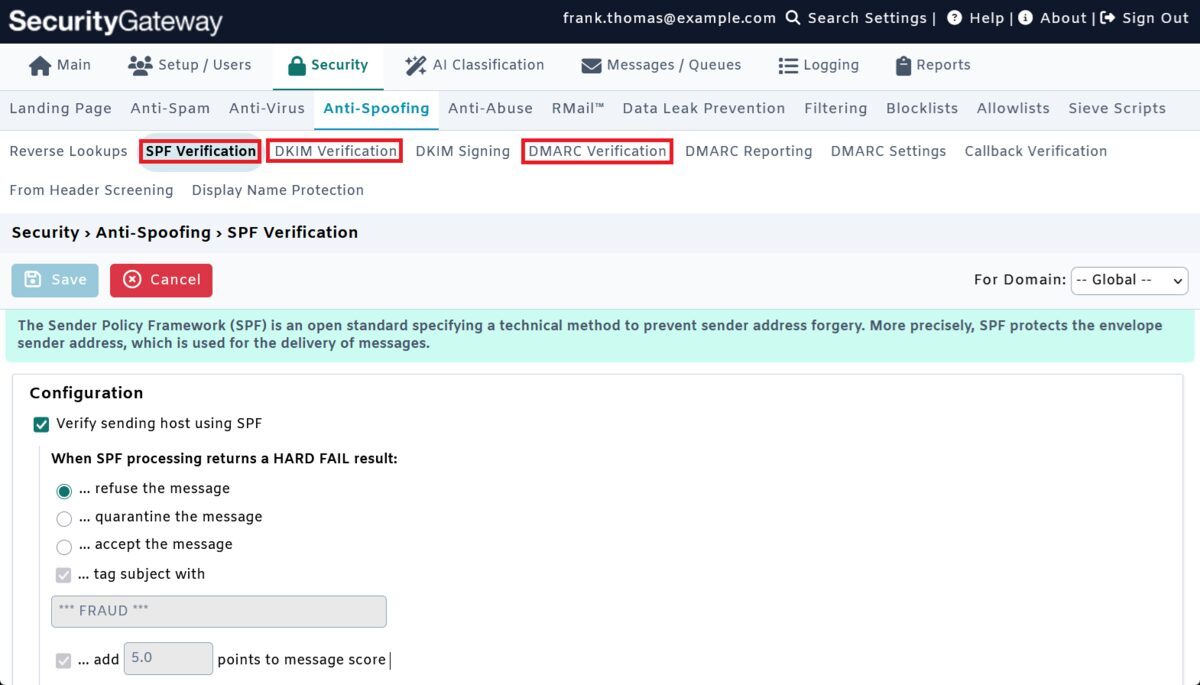
Next, enable SPF, DKIM, and DMARC verification. In SecurityGateway, you’ll find these settings under Security | Anti-Spoofing. Each feature has settings on what happens with email messages that don’t align with these anti-spoofing measures (refuse, quarantine, adjust spam score, etc.).
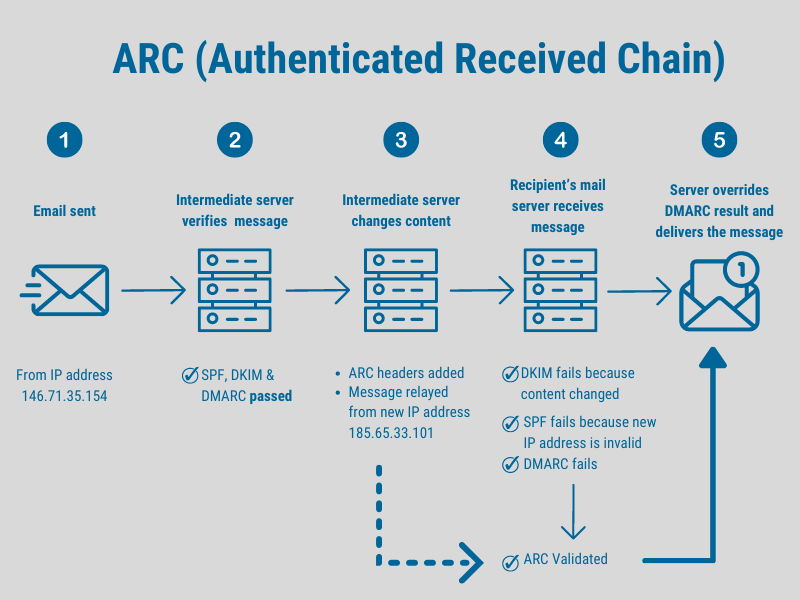
I also recommend signing messages with ARC (Authenticated Received Chain) so that legitimately forwarded mail isn’t penalized for authentication failures that it didn’t cause.
For context, ARC is an email authentication protocol that allows intermediate mail servers to digitally sign a message’s authentication results. When a downstream mail server performs DMARC verification and detects that SPF or DKIM has failed (due to forwarding or mailing list modifications, for instance), it can review ARC results from a trusted server to determine whether to accept the message.
The payoff: A large share of spoofed sender attacks get blocked before they reach your users’ inboxes.
2. Enable Zero-Hour Outbreak Protection (~2 min)
Signature-based antivirus solutions can’t catch malware released within the last hour, leaving businesses vulnerable to new & emerging threats. To address this security gap, Zero-Hour Outbreak Protection compares inbound and outbound email messages against global, real-time structural and distribution patterns to catch the latest threats long before traditional antivirus solutions are able to update their virus definitions.
The payoff: This helps close the gap between the launch of a new malware campaign and the AV vendor’s response.
3. Enable QR Code & Macro Detection (~3 min)
Cybercriminals continue to use a mix of old and new tactics in phishing emails, including inserting QR codes that lead to websites designed to steal your data, and malicious macros in Microsoft Office documents that can launch malware on your network. SecurityGateway can block both of these tactics, but administrators sometimes forget to enable these features.
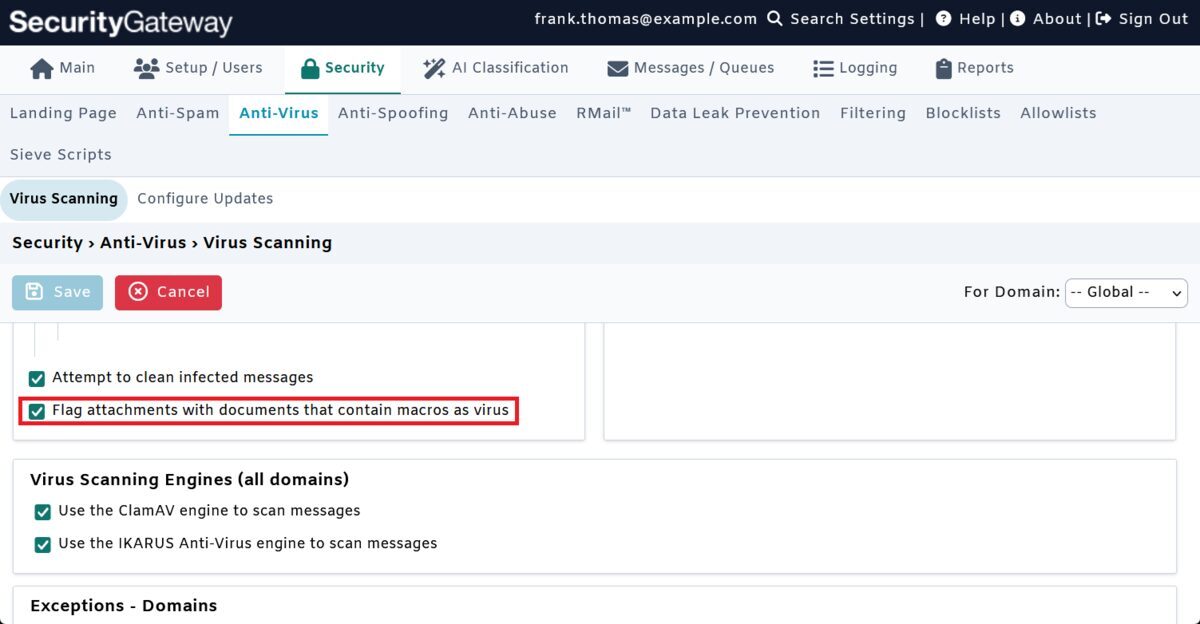
Macro detection can be enabled via the Security | Anti-Virus menu, as shown here.
4. Prevent Account Takeover Attempts (~2 min)
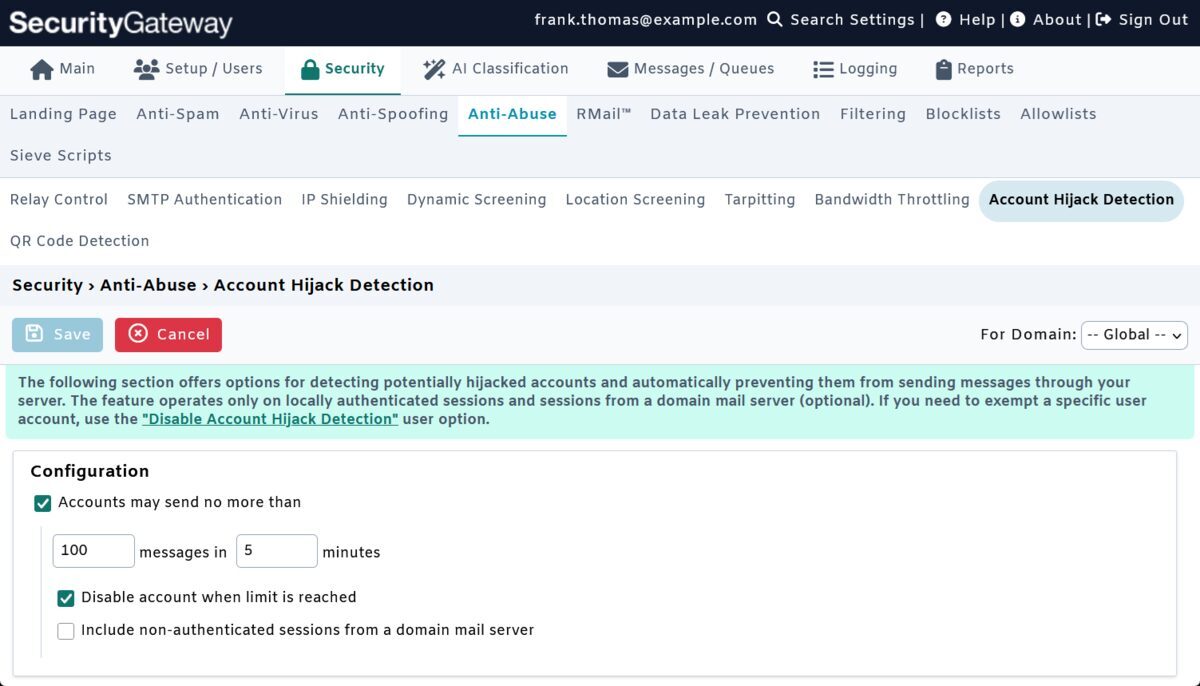
A hijacked email account often shows up in the logs as a behavioral change: unfamiliar login location, outbound volume spike, compromised account sending internal phishing. SecurityGateway’s Account Hijack Detection watches for these patterns and can disable an account before it has a chance to do more damage. This feature is located under Security | Anti-Abuse.
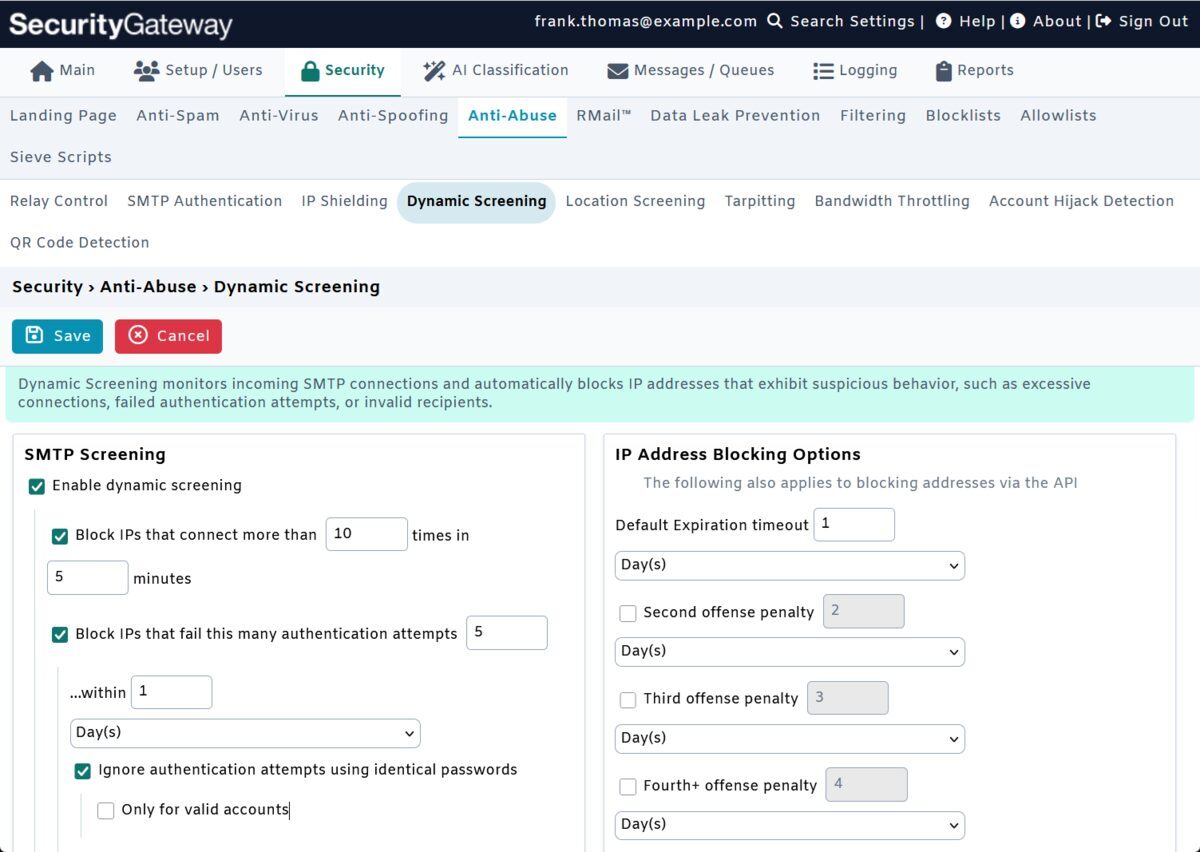
5. Enable Dynamic Screening (~3 min)
Dynamic Screening builds on IP/sender reputation to catch bad actors without an established blocklist entry. This feature can block connections based on suspicious activity, such as connecting too many times in a given period, or failing a given number of authentication attempts.
6. Use DNS & URI Blocklists (~2 min)
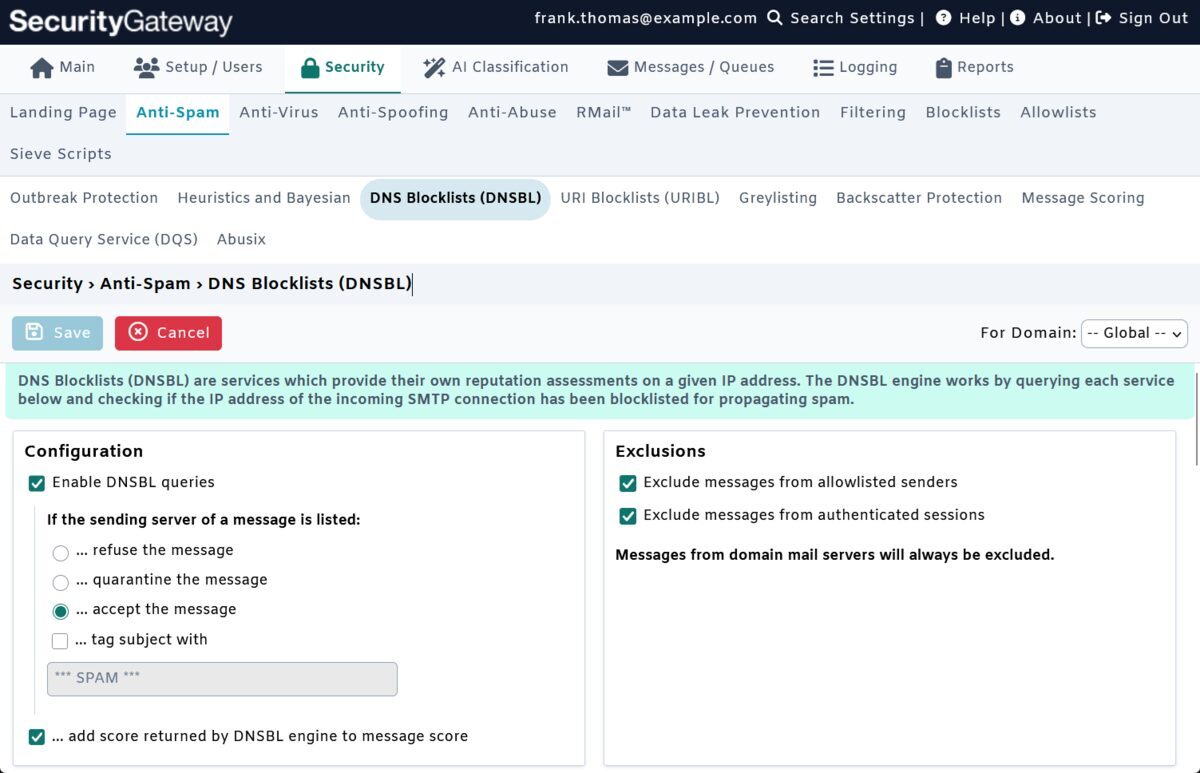
DNS blocklists are lists of domains or hosts known to send spam, and URI blocklists are lists of known malicious URLs. Confirm DNS blocklist checking is enabled and pointed at reputable providers, and be sure to enable URI blocklist checking to prevent emails containing malicious links from being delivered to your users.
The payoff: These features help catch phishing from compromised but legitimate accounts that may pass sender authentication checks.
Additional Recommendations to Secure Your Email
In addition to the above six steps, you can further protect your email by enabling these features:
- IP Shielding - to ensure mail from your domain is sent only from valid IP addresses
- SMTP Authentication - to ensure mail sent from your domain is authenticated with a valid username and password
- Relay Control - enabled by default in SecurityGateway, but exceptions can be enabled, so ensure all exceptions to this security feature have been properly vetted & validated.
Final Thoughts
While no security vendor can guarantee that nothing gets through, layered defense works by making a successful attack progressively harder at each stage, not by promising perfect prevention. But an SMB that completes this checklist has closed the gaps that account for a large share of successful email attacks. If your team wants a deeper walkthrough of any of these features, SecurityGateway includes a 30-day trial with full access to every feature described here.