If you're an administrator using SecurityGateway for Email from MDaemon Technologies, you already know that the dashboard is your command center. It gives you an at-a-glance view of server health, message queues, spam activity, and more. But did you know you can go far beyond the default charts and build your own custom reports tailored to exactly what your organization needs to monitor?
Introduced in SecurityGateway 10 and further refined in subsequent releases, the Custom Charts feature lets administrators create personalized dashboard charts based on messaging and bandwidth data. You can surface insights that matter most to your team — without digging through plain-text logs.
In this article, we'll walk you through how custom charts work and highlight the top 5 most useful custom charts you can create in SecurityGateway.
How Custom Charts Work
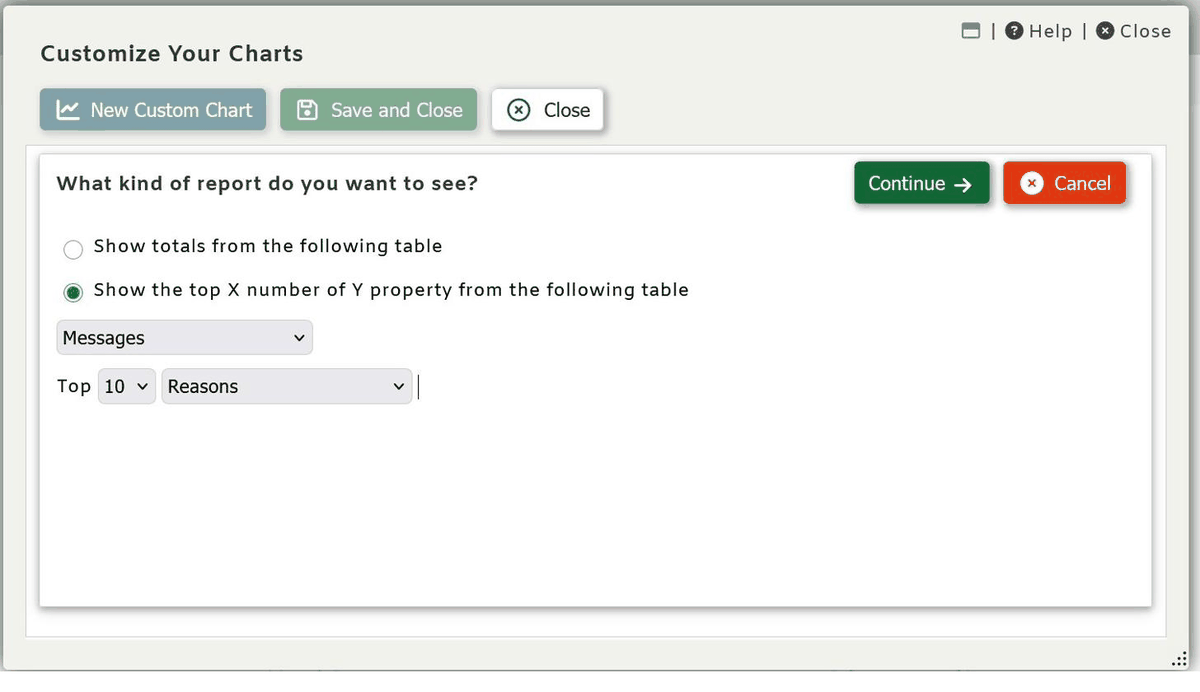
From the main dashboard, click on Customize Charts in the Server Statistics section. From there, you can create a new chart using one of two approaches:
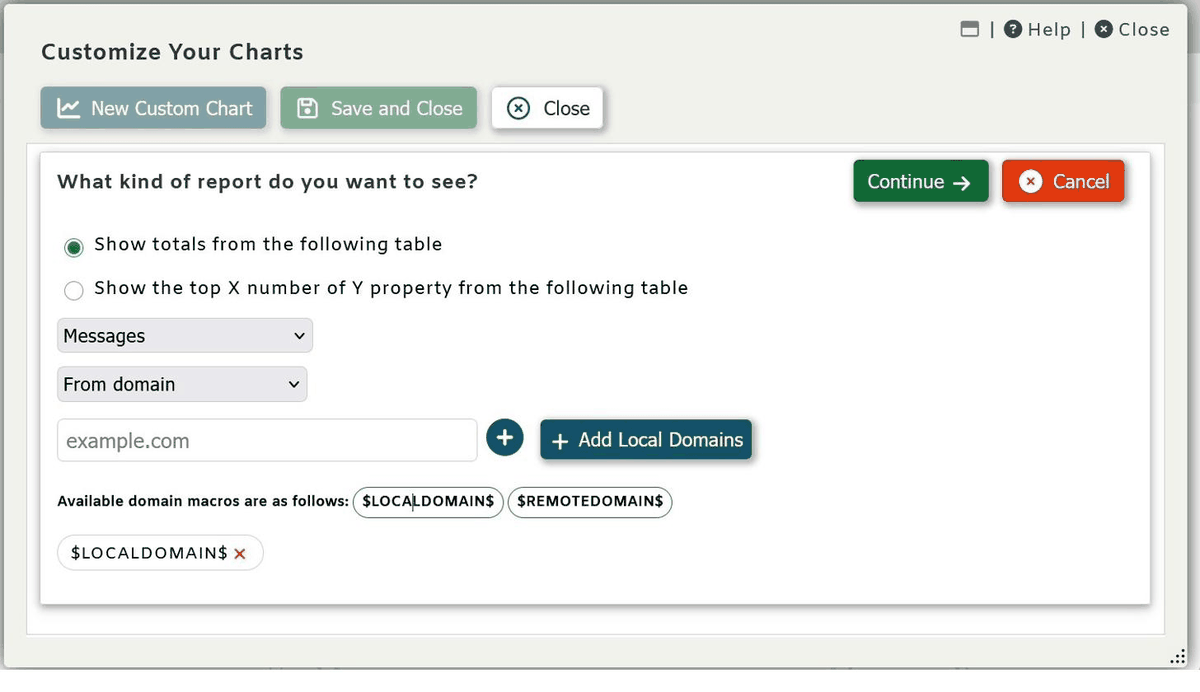
- "Show totals from the following table" — Great for aggregate summaries over a period of time.
- "Show the top X number of Y property from the following table" — Perfect for ranking the busiest senders, recipients, countries, and more.
The available data tables are Messages and Bandwidth Used. Within those, you can filter data by properties such as:
- From Domain — the sending domain
- To Domain — the receiving domain
- Reason — why a message was blocked, delivered, quarantined, etc.
- Country — geographic origin of the message
- Continent — continent of origin
Once a chart is on your dashboard, you can hover over data points for detailed statistics — and click on them to drill down directly into the message log for that specific data. It's a powerful combination of visualization and investigation in one place.
ℹ️ Note: Domain Administrators will only see data for the domains they manage.
The Top 5 Custom Charts to Build Today
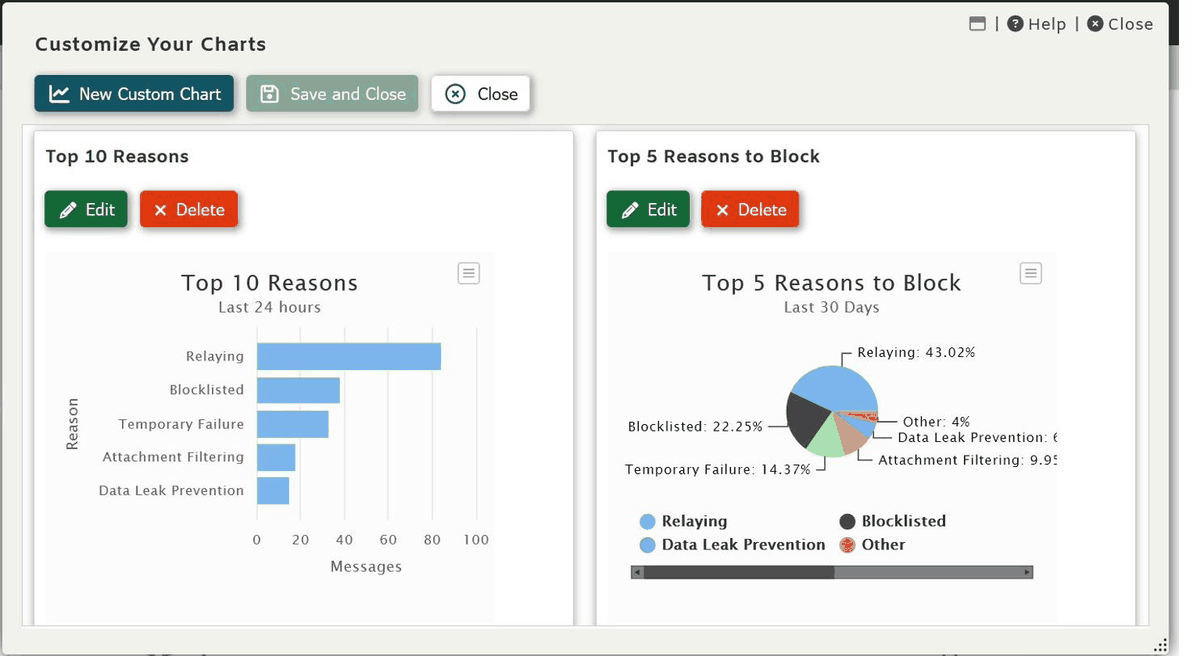
1. Top 10 Reasons by Message Count
⚙️ Configuration: Show the top 10 Reasons from the Messages table
Why It's Useful
This may be the single most diagnostic chart you can put on your dashboard. SecurityGateway can block, quarantine, or tag messages for a wide range of reasons — spam scoring, DNS blocklist hits, SPF/DKIM/DMARC failures, virus detection, content filter rules, attachment filtering, and more. Seeing the distribution of those reasons at a glance tells you whether your filtering is working the way you intend.
A healthy system will show a predictable mix. When that mix shifts — say, SPF failures suddenly overtake spam scoring at the top — it's an early warning sign worth acting on before users start complaining or threats start slipping through.
This chart is also invaluable during policy tuning. If you tighten a content filter rule and "User" reasons spike unexpectedly, you'll know immediately that you may be catching legitimate mail. There is no equivalent to it in SecurityGateway's built-in reports.
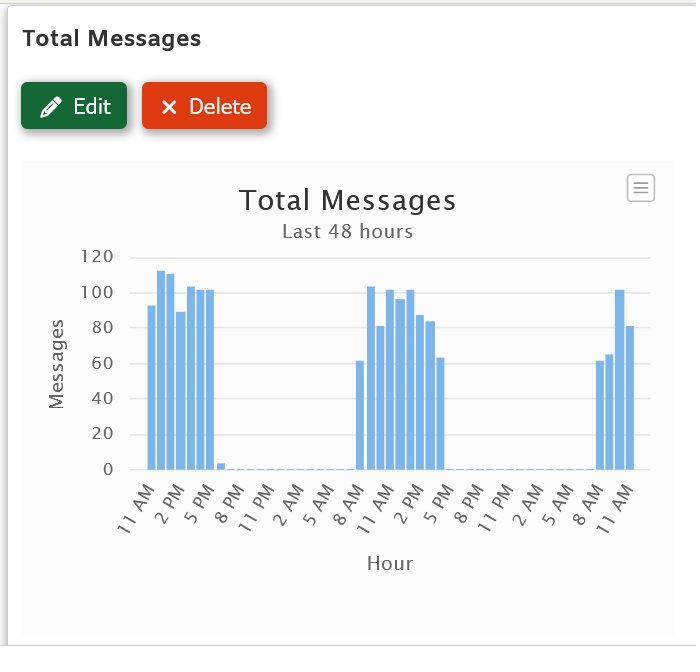
2. Total Messages (Show Totals)
⚙️ Configuration: Show totals from the Messages table
Why It's Useful
Simple and often overlooked — a totals chart gives you your baseline. Before you can recognize an anomaly, you need to know what "normal" looks like for your environment. Total message volume is the single most reliable indicator of something unusual happening: a spam campaign arriving in bulk, an account sending a flood of outbound messages, or traffic mysteriously dropping off (which can signal a delivery problem).
SecurityGateway's built-in Inbound vs. Outbound and Good vs. Junk charts are useful, but they break the data into categories. Sometimes you just want to see the raw total in one clean line. This chart acts as your heartbeat monitor — steady is good, spikes and dips need attention.
💡 Pro Tip: Pair this with a "Show totals from the Bandwidth Used table" chart side-by-side. A spike in message count with normal bandwidth suggests a high-volume, low-size campaign (typical of spam). A bandwidth spike without a proportional message count spike suggests large attachments — which may point to malware delivery or an insider data transfer concern.
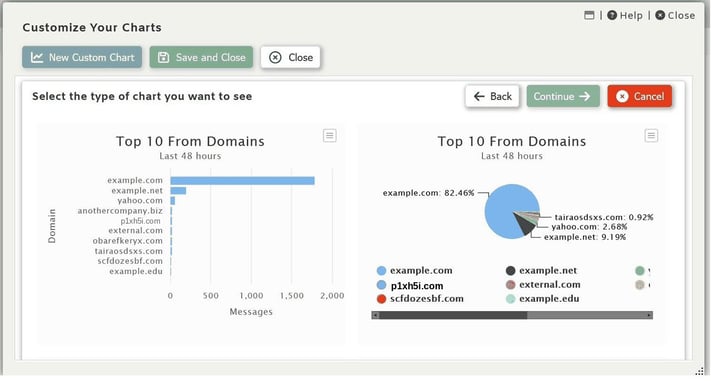
3. Top 10 From Domains by Message Count
⚙️ Configuration: Show the top 10 From Domains from the Messages table
Why It's Useful
Knowing which external domains are sending the most email to your organization is invaluable for both security and operations. Legitimate high-volume senders — partners, vendors, newsletter services — will appear consistently. An unknown domain climbing to the top of this list is a strong signal worth investigating immediately.
This chart is particularly effective for:
- Spotting spam campaigns originating from a single domain before your users start reporting them
- Auditing your allowlist to confirm that domains you've trusted are still behaving appropriately
- Identifying domain spoofing attempts, where a lookalike domain suddenly generates unexpected volume
Because you can click directly into the Message Log from any data point, you can pull up every message from a suspicious domain in seconds — no manual log filtering required.
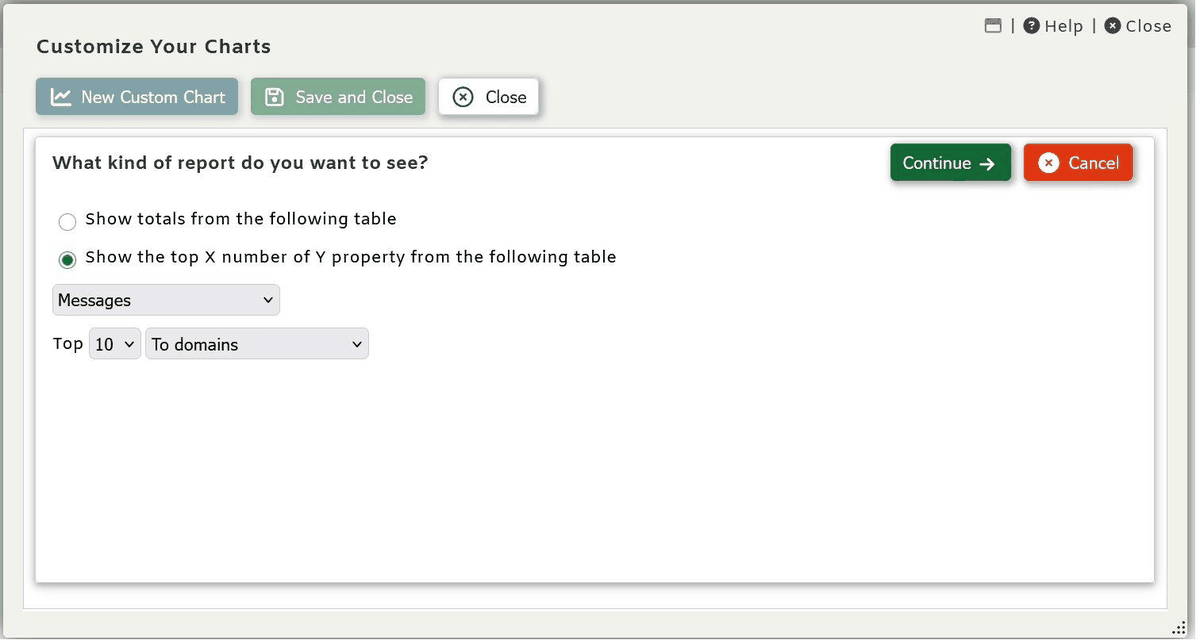
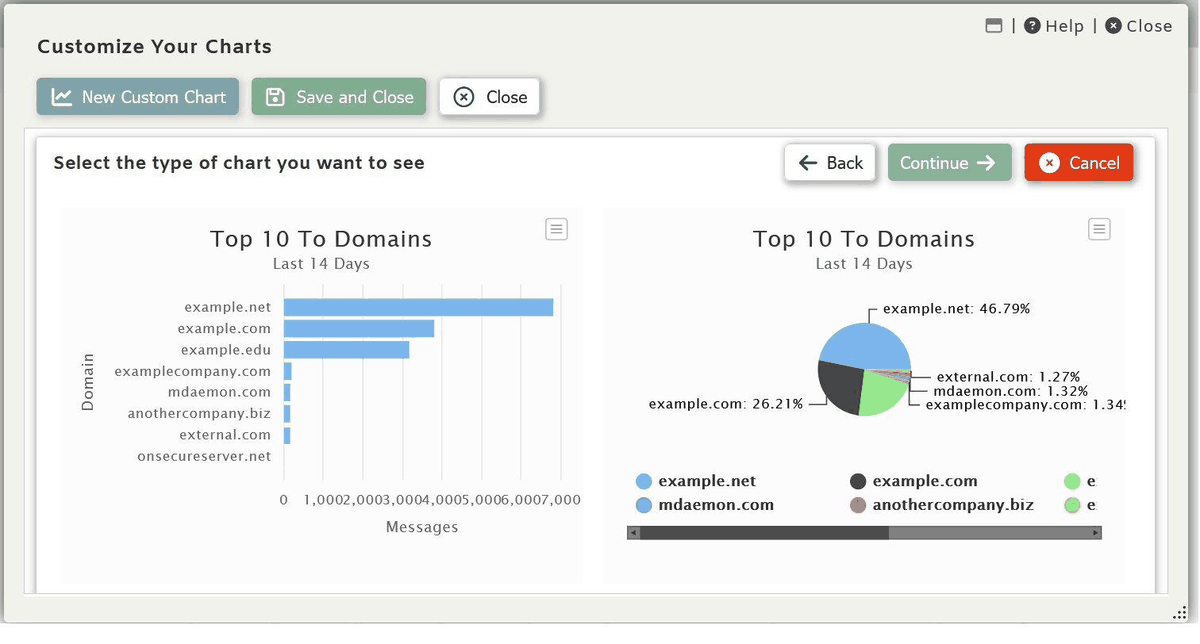
4. Top 10 To Domains by Message Count
⚙️ Configuration: Show the top 10 To Domains from the Messages table
Why It's Useful
This chart is the logical companion to the From Domains chart, but it answers a different and equally important question: where is your outbound mail going? In a typical environment, your top recipient domains will be stable — major partners, common platforms, frequent contacts. When an unfamiliar domain suddenly appears near the top, it warrants a closer look.
Unusual outbound To Domains can indicate:
- A compromised account sending bulk mail to an attacker-controlled domain
- An employee exfiltrating data to a personal or unauthorized external service
- A misconfigured application or script sending mail somewhere unintended
This kind of outbound visibility is easy to miss when you're focused on blocking inbound threats. A dedicated chart keeps it in view every time you log in.
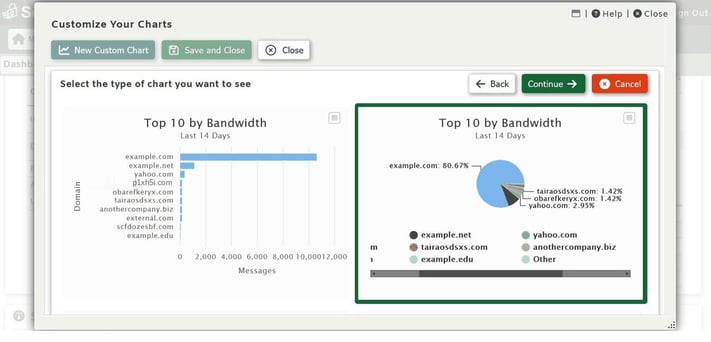
5. Top 10 From Domains by Bandwidth Used
⚙️ Configuration: Show the top 10 From Domains from the Bandwidth Used table
Why It's Useful
Message count and message size tell very different stories. A domain sending 500 small, text-only messages looks very different from one sending 20 messages with 50 MB attachments each — but both can represent a threat. This chart catches the second scenario that a count-only view would miss entirely.
High-bandwidth inbound senders are worth scrutinizing because:
- Malware and ransomware are increasingly delivered inside large, legitimate-looking documents
- Spam campaigns sometimes use heavy HTML or embedded images to bypass text-based filters
- A known legitimate sender suddenly increasing their average attachment size could indicate their own systems have been compromised
Comparing this chart against your Top From Domains by Message Count chart is a powerful exercise. Domains that rank high on bandwidth but low on count deserve particular attention — they're sending fewer messages, but each one is large, which is an unusual and sometimes deliberate pattern.
A Note on Built-In Reports
SecurityGateway already provides excellent built-in charts for geographic data — including Top Countries, Junk Email - Top Countries, and Top Spam Domains. When choosing what to build as custom charts, it's worth prioritizing insights that aren't already covered by these defaults. The five charts above focus on dimensions — reasons, raw totals, outbound destinations, and bandwidth patterns — that give you genuinely new visibility rather than duplicating what's already on your dashboard.
Bonus Tip: Combine Custom Charts with Scheduled Reports
Custom charts on the dashboard are a live, visual tool — but SecurityGateway also offers Scheduled Reports that can deliver nightly or weekly statistics emails to global and domain administrators. Use your custom dashboard charts for real-time monitoring, and pair them with scheduled reports so your team gets a regular summary without having to log in daily.
Get Started
Custom Charts are available in SecurityGateway 10 and later. To access them:
- Log in to your SecurityGateway dashboard.
- Scroll down to the Server Statistics section.
- Click Customize Charts.
- Click to add a new chart and choose your configuration.
- Save and return to your dashboard to see your new chart in action.
For a full list of available reports and chart options, visit the SecurityGateway documentation at help.mdaemon.com or explore the MDaemon Technologies blog at blog.mdaemon.com for the latest product updates. Visit our Literature page for datasheets and how-to guides.