If you've added an email address to your DMARC record (in the RUA tag), you should now be receiving DMARC aggregate reports from every major mailbox provider that sees mail claiming to be from your domain (click here for a refresher on this topic). In this post, I’ll explain what's actually in those reports and how to use them to improve your domain's authentication.
What's in an aggregate report
Each report covers a single reporting organization (Google, Microsoft, Yahoo, and so on) for a fixed date range, usually 24 hours. Inside that report is a list of every source IP address that sent mail using your domain during that window, along with the authentication results for each one. These reports are XML files by default. You don't need to read the raw XML by hand to get value from this. Most DMARC monitoring tools will parse it into a table automatically. What's important is knowing what to look for in these reports.
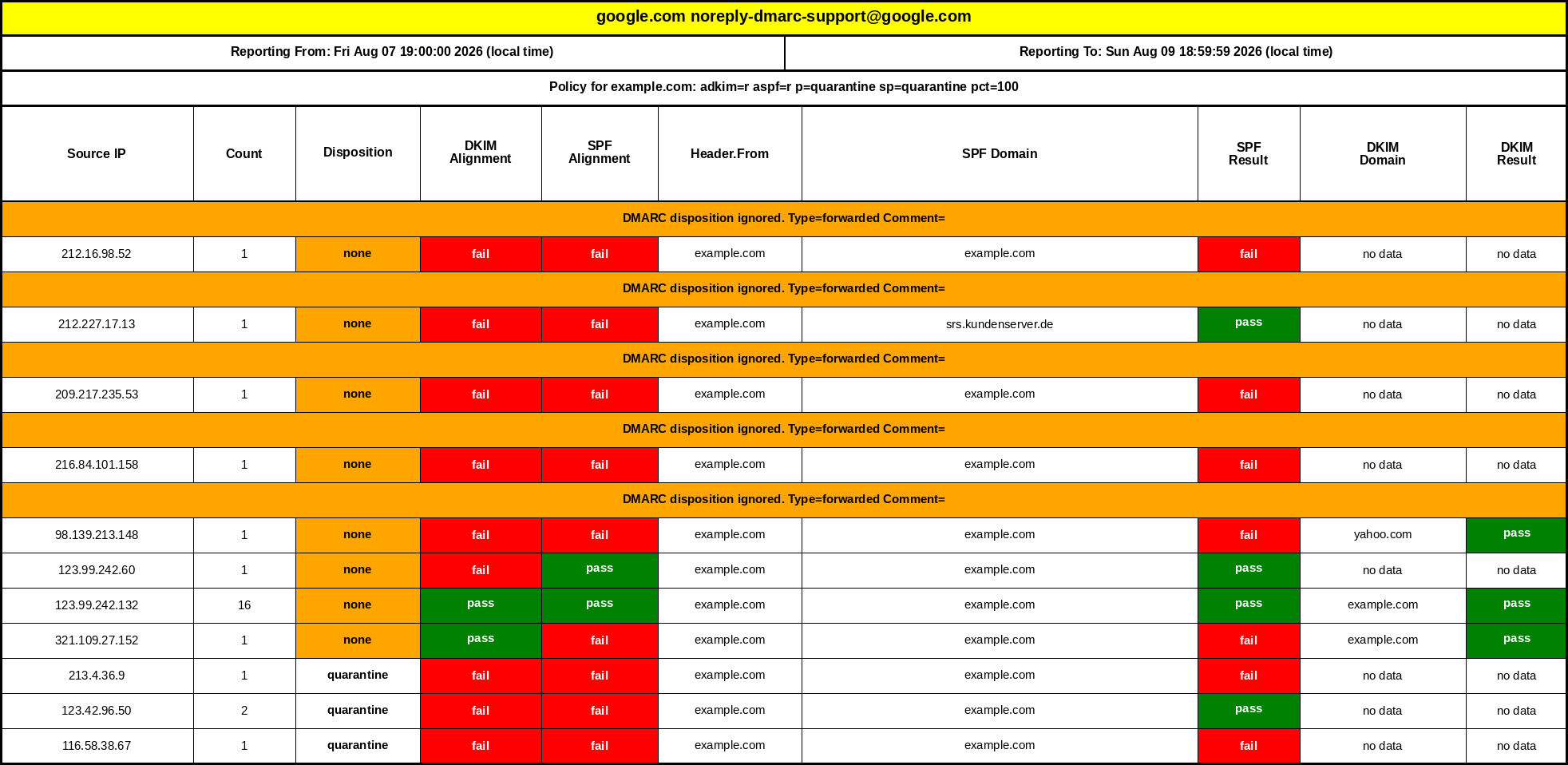
Reading DMARC Reports
Three fields determine whether a row in your report needs attention.
Source IP address. This tells you where the mail actually came from, whether that's your mail server, a marketing platform, a helpdesk tool, or something you don't recognize.
SPF and DKIM alignment. A source can pass SPF or DKIM individually and still fail DMARC if the domain in the "From" header doesn't align with the domain used in the SPF or DKIM check. Alignment, not just pass/fail, is what DMARC actually evaluates.
Alignment has two modes, relaxed and strict, set independently for SPF and DKIM in your DMARC record. Relaxed alignment, the default, accepts any subdomain of your organizational domain, so mail sent from mail.yourdomain.com still aligns with yourdomain.com. Strict alignment requires an exact match between the "From" domain and the SPF or DKIM domain, with no subdomain variation allowed.
Disposition. This shows what action was applied to that mail (none, quarantine, or reject) based on your current policy. At p=none, this will always read "none," since you haven't asked receivers to take action yet. It's still important, since it previews what would happen to that traffic once you move to enforcement.
Identifying patterns in DMARC reports
A single failing row doesn't tell you much on its own. The useful information comes from looking at a source across multiple reports and multiple days. A source that fails alignment consistently and maps to a system you recognize, like your CRM or a support ticketing tool, usually means that system needs to be added to your SPF record or configured to sign with DKIM. A source that fails consistently and doesn't map to anything you run is a different problem: it may be a legitimate cause for concern, or it may be a third party using your domain in ways you haven't documented yet, but either way, I’d recommend investigating before you assume it's spoofing.
A few simplified rows from a report show the difference:
|
Source IP |
SPF |
DKIM |
Disposition |
Read |
|
Your mail server |
pass |
pass |
none |
Clean, no action needed. |
|
Your CRM / helpdesk tool |
fail |
fail |
none |
Legitimate source; needs SPF/DKIM added. |
|
Unrecognized IP |
fail |
fail |
none |
Investigate before assuming spoofing. |
Tools vs. raw XML
You can read aggregate reports by hand, but there are tools available that make these reports more reader-friendly. A DMARC report parser (there are several commercial and open-source options) converts every report into a single running table across your date range, so you can filter by source IP, sort by failure count, and watch alignment failures drop over time. Whether you use a dedicated tool or a spreadsheet you're maintaining yourself, the goal is the same: turn scattered daily reports into one view of your domain's sending sources.
Knowing when you're ready to move on
A clean reporting period, meaning every legitimate source is aligning correctly and any remaining failures are sources you don't recognize or don't need, indicates that you're ready to move from p=none to p=quarantine. If you're tracking your rollout against the phased-rollout worksheet, this is the point where you check off the reporting phase and move to the next stage.
Where to go next
If you haven't set up SPF and DKIM yet, or want a refresher on how they work together with DMARC, start with our DKIM/SPF/DMARC explainer video. And if you're planning your rollout timeline, the phased-rollout worksheet walks through each phase from p=none to p=reject.