Most administrators know SecurityGateway for Email stops spam, phishing, and malware before they reach their mail server. It also has other jobs that you may not yet be taking full advantage of. SecurityGateway can keep a searchable archive of every inbound and outbound message for your domains, apply retention rules and Legal Hold to that archive, and stop messages containing sensitive data from leaving your organization.
This video shows the archiving, compliance, and data leak prevention features in SecurityGateway.
Requests that spam filtering can't answer
Think about the requests that land on an IT administrator's desk. A client asks for an email that was sent two years ago. The legal team says nothing can be deleted until a dispute is resolved. An employee sends a spreadsheet full of account numbers to the wrong address. A good spam filter helps with none of these. Legal teams often need a reliable record of your mail, rules that decide how long archived email is kept, and controls on what leaves your network.
Organizations keep email for practical reasons such as answering customer questions, responding to e-discovery requests, and preserving records when litigation is expected. As I mentioned in an earlier blog post, retention requirements differ by industry and jurisdiction. SecurityGateway doesn't decide those requirements for you, but it gives you the tools to carry out the policies your organization sets.
Turning on email archiving
Archiving (added in version 6.0) is built into SecurityGateway. To turn it on, go to Setup/Users > Archiving > Configuration and check Enable Email Archiving. SecurityGateway will then save a copy of each incoming and outgoing message for your domains. The Knowledge Base article How do I configure and use the Email Archiving feature in SecurityGateway? walks through the full setup.
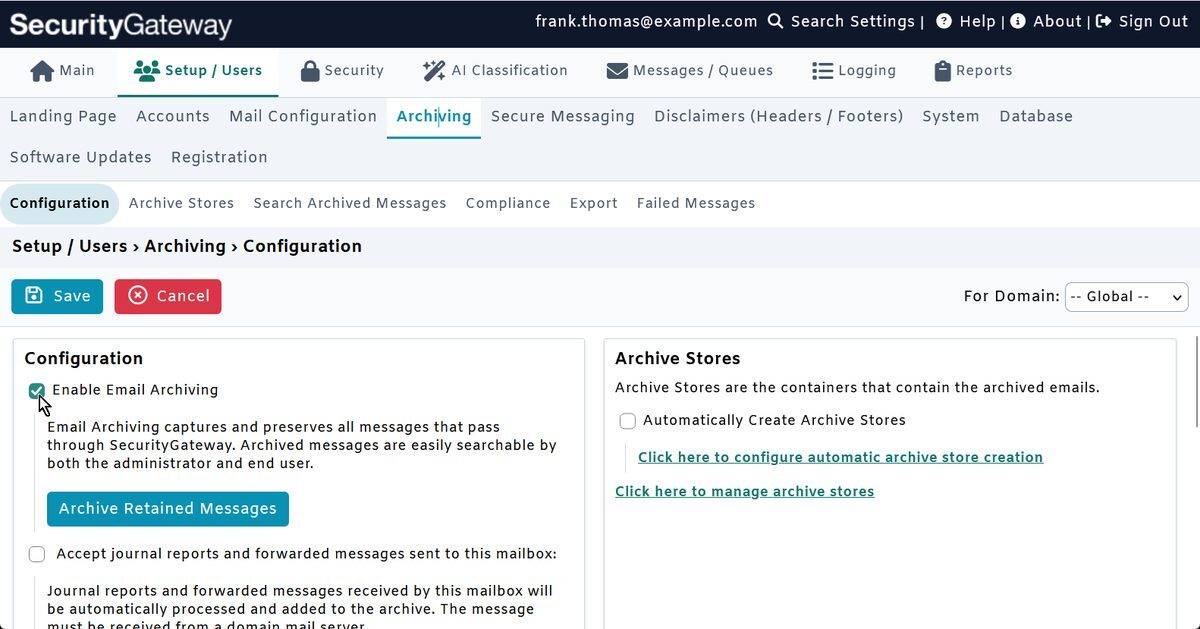
The setting applies globally, but you can override it for individual domains with the For Domain: drop-down in the upper right corner of the page. Domains you configure this way are listed under Exceptions, where you can view, edit, or reset them to the global settings. If you turn archiving on for a domain that already has mail history, the Archive Retained Messages button adds messages that are still retained in the SecurityGateway database but have not yet been archived.
If your organization uses Microsoft 365, SecurityGateway can also accept Microsoft 365 journal reports or other forwarded messages at a mailbox you designate on the same page. SecurityGateway reads the headers to find the actual recipient, confirms that the sender or recipient is a valid local user, and adds the message to that domain's active archive store. These messages must come from one of your Domain Mail Servers.
How archive stores are organized
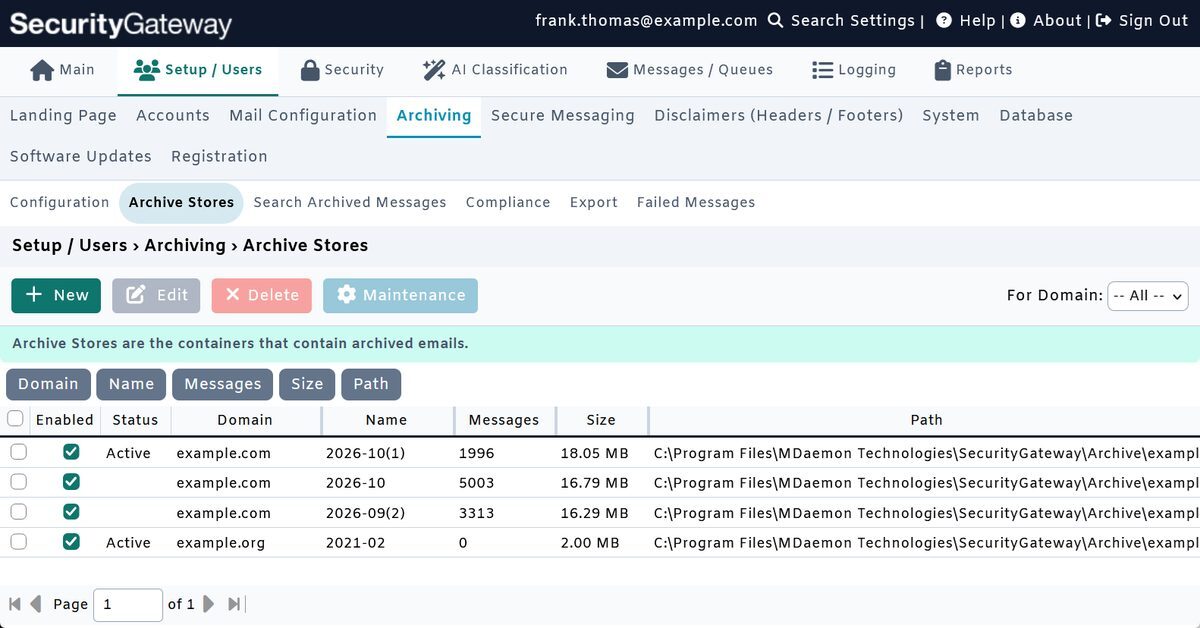
Archived messages are saved in archive stores. Each store belongs to a single domain, and a domain can have several stores, but only one is active and receiving new mail at a time. The recommended setting is to let SecurityGateway create new stores automatically. You can start a new store every year, quarter, or month, or whenever the current store reaches a set number of messages or a set size. By default, a new store starts at 5 million messages.
You can also choose where each store is kept. By default, a store's database, message content, and full text search index are kept together in one folder. With the option to Use different directories for database, message content, and search index, you can put each one in a separate location. That’s useful if you want to place the archive on storage with more space, or keep the index on faster disks. Older stores can be reviewed and managed at Setup/Users > Archiving > Archive Stores.
Finding, restoring, and exporting archived mail
When someone needs a specific message, go to Setup/Users > Archiving > Search Archived Messages. Use the For Domain: option to search one domain or all of them, and open the Advanced options to narrow the search by subject, message body, date range, attachments, size, and other attributes. Searches support wildcards, exact phrases in quotation marks, and a minus sign (-) to exclude certain words.
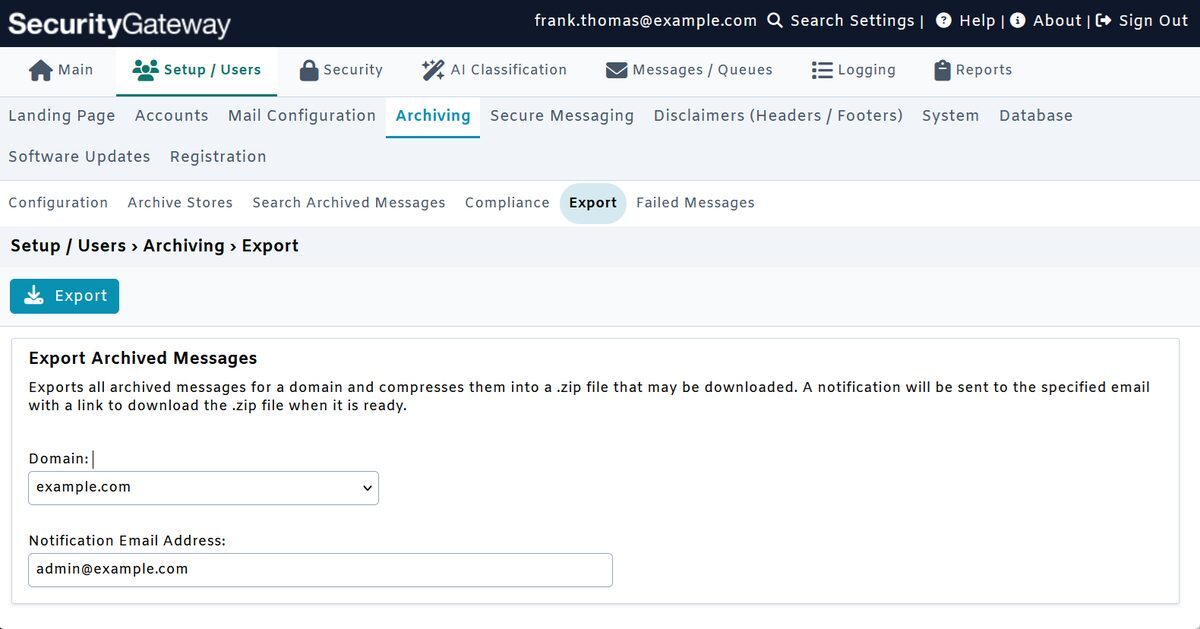
From the results you can view a message, download it, or restore it to the mailbox it belonged to. If you need to move a domain's archive out of SecurityGateway, go to Setup/Users > Archiving > Export Archived Messages. Choose the domain and enter an email address, and SecurityGateway compresses that domain's archived messages into a ZIP file and emails a download link to that address when the file is ready.
Letting users search their own mail
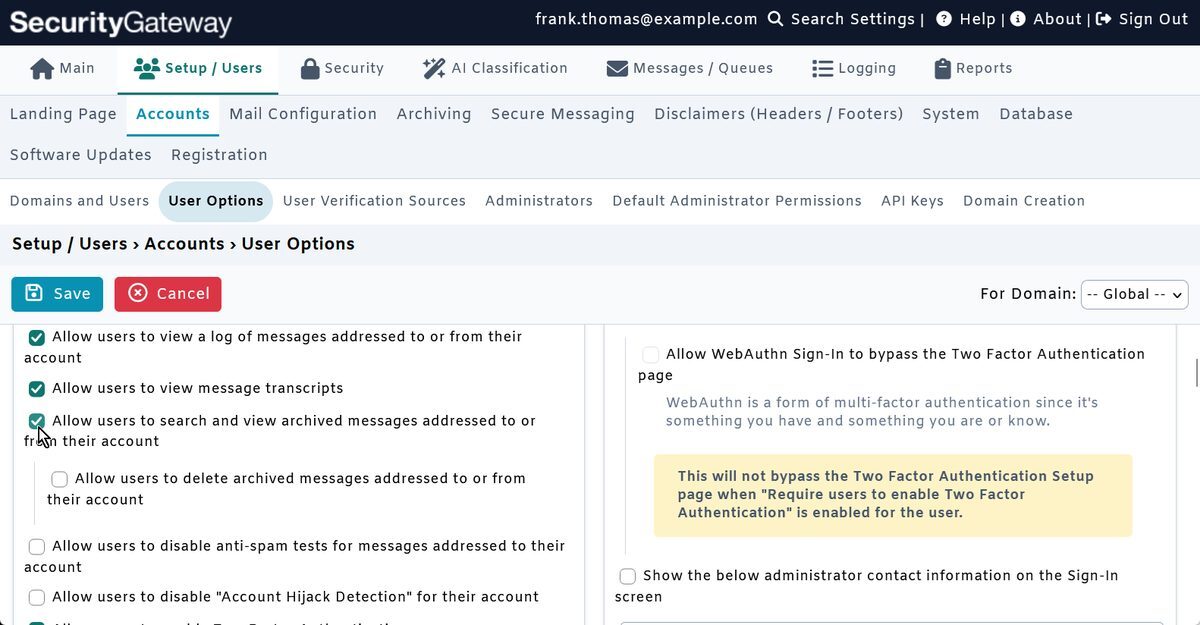
Many archive requests are simple ones, such as a user who deleted an email and needs it back. SecurityGateway can let users handle these lookups themselves. The setting can be found at Setup/Users > Accounts > User Options. It is labeled Allow users to search and view archived messages addressed to or from their account, and it is enabled by default. Users then search their archived mail from their own SecurityGateway account.
Retention periods and Legal Hold
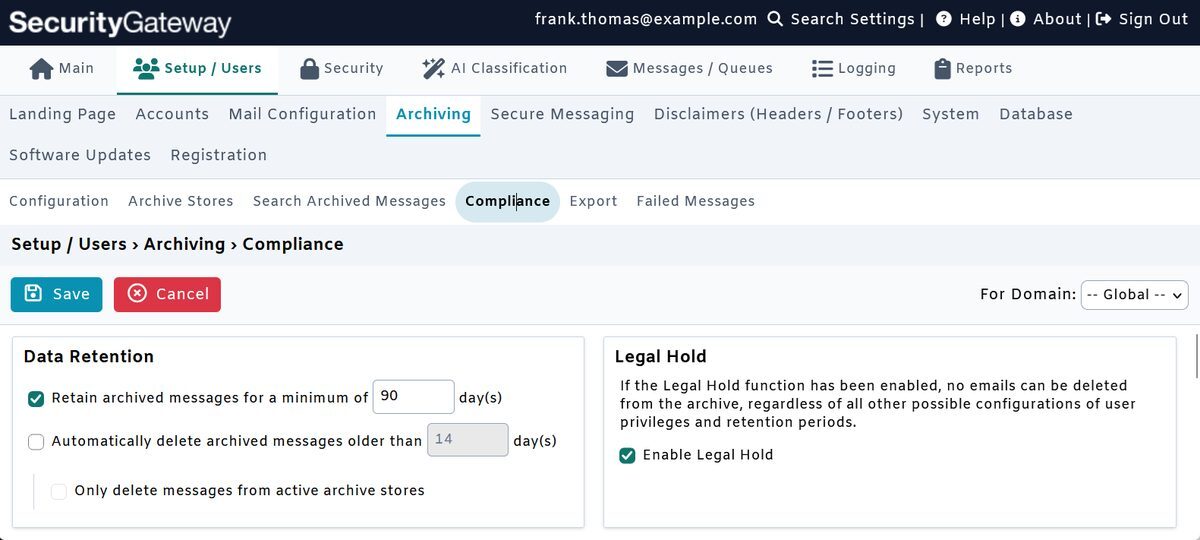
The retention settings are located at Setup/Users > Archiving > Compliance, and include their own For Domain: selector, the same control used on the Configuration page. Check Retain archived messages for a minimum of X day(s) to set a minimum retention period, during which archived messages cannot be deleted regardless of any other settings or user permissions. Check Automatically delete archived messages older than X day(s) to have SecurityGateway delete archived messages once they reach a certain age, and use Only delete messages from active archive stores, to control whether that automatic deletion also applies to older messages in inactive archive stores.
When a lawsuit, audit, or investigation means nothing should be deleted, check Enable Legal Hold on the same page. Legal Hold was added to SecurityGateway in version 6.1, along with the minimum retention period. It prevents emails from being deleted from the archive, regardless of any other settings, user permissions, or retention periods. The archive stays protected until you turn Legal Hold off.
Stopping sensitive data from exposure via email
Archiving gives you a record of what was sent. Data Leak Prevention (DLP) helps keep sensitive information from being sent in the first place. Its rules can be found at Security > Data Leak Prevention > Data Leak Prevention Rules. SecurityGateway includes ready-made global rules that look for data such as credit card numbers, bank account information, and passport numbers. Check the box next to a rule to enable it.
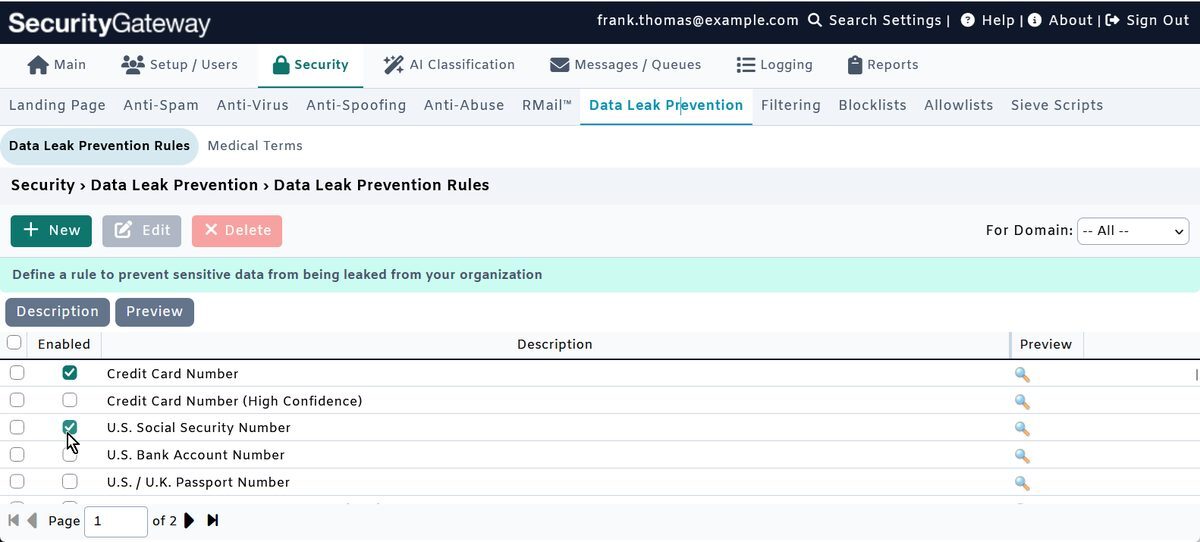
By default, an enabled rule applies only to outbound messages, and it sends any matching message to the Administrative Quarantine for review. You can edit any rule to change what happens. For example, you can redirect the message to another address, or choose Send as secure web message so the message is delivered through SecurityGateway's Secure Messaging portal. With Secure Messaging, the recipient opens the message in a browser over an HTTPS connection. This feature requires a valid SSL certificate and HTTPS to be enabled.
Keeping track of who changed what
Retention policies only help if the settings behind them stay in place. SecurityGateway's Change log, found under Logging > Log Files, lists all changes to SecurityGateway's configuration and who made them. If a retention setting or DLP rule changes, you can see when it changed and which administrator changed it.
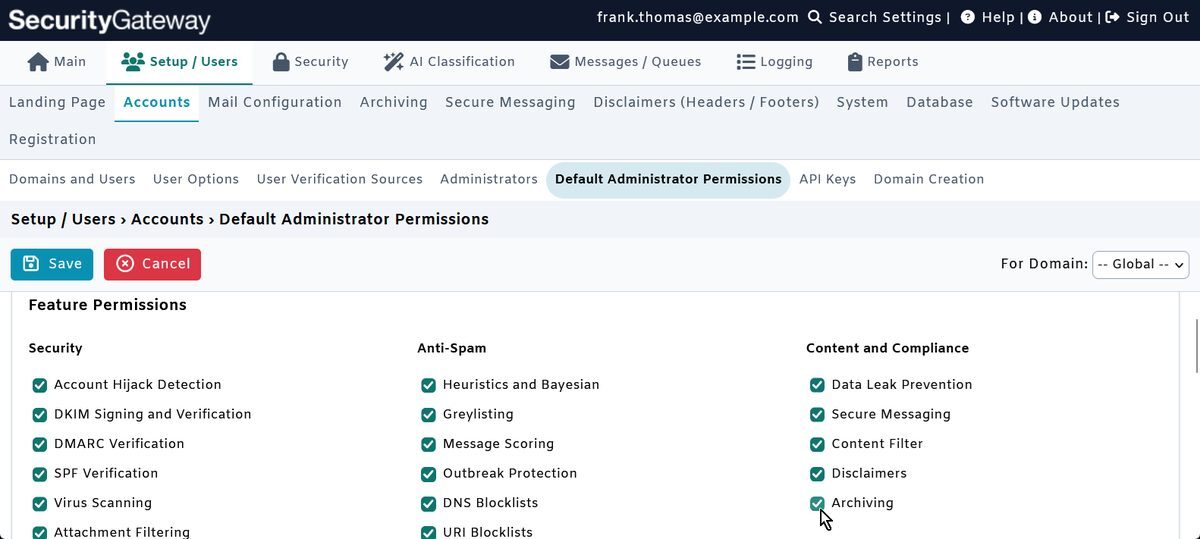
Version 12.5 adds another level of control. Global administrators can now decide which areas of the product each domain administrator can manage, including archiving. Permissions are set for each administrator in the Edit Administrator dialog. Defaults for new domain administrators can be set at Setup/Users > Accounts > Default Administrator Permissions and applied to existing domain administrators in bulk. Archiving pages are hidden entirely from domain administrators who don't have permission to manage them. The 12.5.2 update also prevents domain administrators from changing where archive stores are located.
Try it on your own mail
Compliance takes more than one tool, but SecurityGateway can help your retention and privacy policies hold up in day-to-day use. Because archiving, retention, Legal Hold, and Data Leak Prevention are already part of the product you use for filtering, you can turn them on and test them with your own domains.
Start your free 30-day SecurityGateway trial at mdaemon.com.