In our last post, we discussed how to troubleshoot a missing inbound email in MDaemon (read it here). Today, we flip the scenario & discuss how to troubleshoot outbound email delivery issues.
When an outbound message doesn't reach its destination, the cause is almost always recorded somewhere in your MDaemon logs; you just have to know where to look and how to read it. Drawing on real support cases, we’ll walk you through the seven most common reasons outbound mail fails, with log excerpts and resolution steps.
One of the most important things you can do is open the SMTP-out log in \MDaemon\Logs\ (or use Queue and Statistics Manager in the MDaemon Configuration Session) and search for the Message-ID or Session-ID of the failed message. The session transcript tells you which of the seven failure modes you're dealing with.
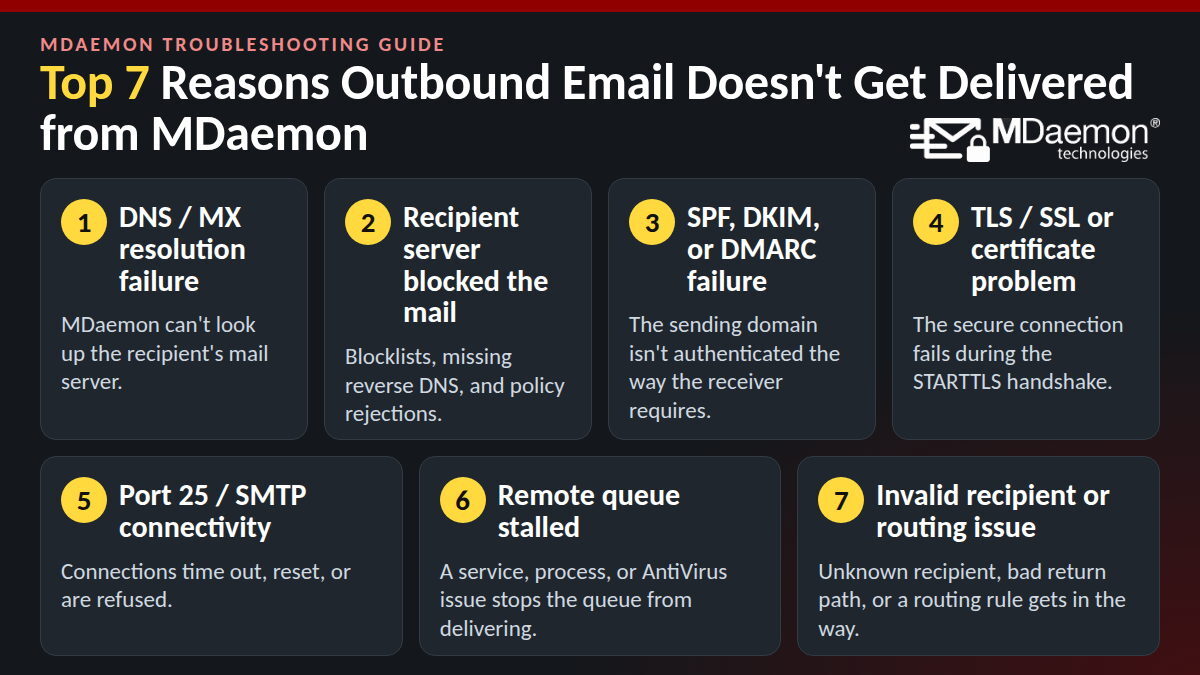
1. DNS / MX Resolution Failure
MDaemon must resolve the recipient domain's MX record (and then the A record for that MX host) before it can open an SMTP connection. If the DNS server is slow, unreachable, or returns nothing, delivery stalls or simply fails.
Real examples from support cases:
- An administrator reported "Intermittent DNS errors to one domain." The SMTP session repeatedly logged 10-second DNS timeouts across every configured DNS server before terminating with a socket error. The fix was to add the recipient's MX record to the MX Cache file so MDaemon would stop depending on live DNS for that one domain.
- A hosted-email customer changed the MX record on a newly added domain and immediately began getting "transcript errors," with good mail no longer being delivered.
- An after-hours answering-service ticket captured a customer who had "just changed MX record on the account this evening" and started getting a transcript error on any message that wasn't being delivered.
Verified log snippet (anonymized):
Fri 2026-05-08 13:19:26.322: 05: Performing IP lookup (partner-domain.example)
Fri 2026-05-08 13:19:36.323: 04: * DNS: 10 second wait for DNS response exceeded (DNS Server: 203.0.113.10)
Fri 2026-05-08 13:19:46.324: 04: * DNS: 10 second wait for DNS response exceeded (DNS Server: 203.0.113.11)
Fri 2026-05-08 13:19:56.325: 04: * DNS: 10 second wait for DNS response exceeded (DNS Server: 1.1.1.1)
Fri 2026-05-08 13:20:06.325: 04: * DNS: 10 second wait for DNS response exceeded (DNS Server: 1.0.0.1)
Fri 2026-05-08 13:22:56.417: 04: * Socket error 10053 - Connection abort.
Troubleshooting:
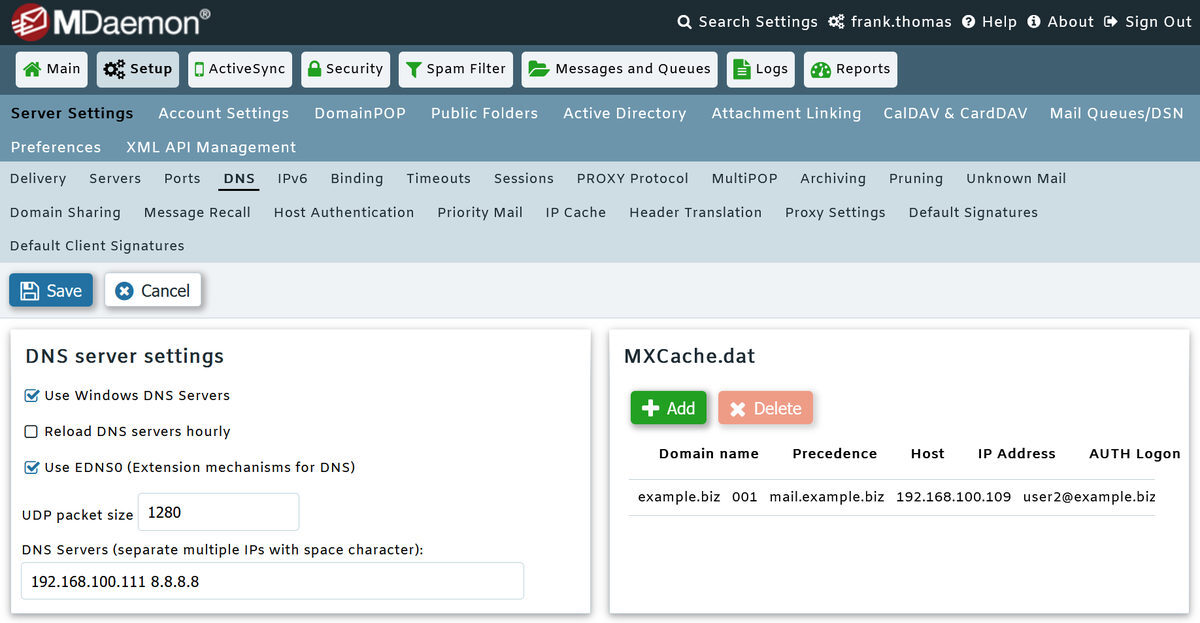
- Verify your DNS servers. In Remote Administration, go to Setup » Server Settings » DNS. MDaemon can use the DNS servers from your Windows TCP/IP configuration and/or servers you configure manually; it tries each in sequence until one works. Add reliable public DNS providers as backups.
- Test resolution directly from the server with nslookup -type=mx recipientdomain.com.
- Cache a known-good MX for a domain using the MX Cache file. Select Setup > Server Settings > DNS, click the Edit MX Cache file button and add a static entry (for example, for a domain hosted in Microsoft 365:
recipientdomain.com 0 recipientdomain-com.mail.protection.outlook.com; replace the example domain and mail server hostname with the recipient domain’s actual MX values). MDaemon checks the MX Cache file before using live DNS, which sidesteps intermittent resolver failures. - Rule out the receiving end. If failures coincide with the receiving domain's admin editing their DNS, the fix is on their side; the MX Cache workaround buys you delivery time in the meantime.
MDaemon DNS Server Settings & MX Cache
2. Recipient Server Rejected or Blocked Mail
Here DNS resolves and the TCP connection succeeds, but the remote server refuses the message, usually because of your sending IP's reputation (blocklist), a missing reverse-DNS/PTR record, or a content/policy rule. These produce 5xx (permanent) or 4xx (temporary) SMTP replies.
Real examples from support cases:
- Spamhaus blocklist: A customer's outbound mail bounced with a 553 reply pointing to spamhaus.org.
- Barracuda blocklist: A real-estate office couldn't reach a recipient sitting behind Barracuda; a separate customer reported that outbound mail "bounced back due to IP blacklisted with Barracuda."
- SpamCop (mixed delivery): One admin was confused that a message to four recipients at one domain was delivered to two and rejected for two others. The receiving server checked the sending IP against SpamCop and returned 550 Rejected only on the recipients whose accounts had DNSBL checking enabled.
- Missing PTR (Comcast / AT&T): A hosted customer received 554 ... Comcast requires that all mail servers must have a PTR record with a valid Reverse DNS entry and, separately, 501 ... does not have valid PTR record. Another customer testing to an AT&T address got 550 5.7.1 Connections not accepted from servers without a valid sender domain ... To correct this, fix reverse DNS.
- ISP change broke reputation: A customer who "changed ISP from Fusion to AT&T" suddenly had outbound mail bounced by receiving servers because the new IP had no matching reverse DNS or sending reputation.
- "Line too long" (Error 500): An Office 365 recipient rejected long threaded reply chains; the same message sent via Webmail went through.
Verified log snippet: Spamhaus rejection (anonymized):
--> MAIL From:<prvs=140329a3ad=user@company-a.example>
<-- 553 5.3.0 198.51.100.20 Rejected - see http://www.spamhaus.org
--> QUIT
Verified log snippet: missing reverse DNS (anonymized):
Tue 2024-10-08 15:43:15: <-- 550 5.7.1 Connections not accepted from servers
without a valid sender domain. Fix reverse DNS for 198.51.100.165
Troubleshooting:
- Read the remote server's exact reply. A 550/553 naming a blocklist means your public IP is listed; a PTR/reverse-DNS message means the problem is DNS, not MDaemon.
- Fix reverse DNS. Ask your ISP to create a PTR record for your public IP that matches your mail server's HELO name (e.g., mail.example.com). This is not set inside MDaemon; it is handled by your ISP, and you can only have one PTR per public IP, so point it at your MDaemon default domain. If you can't get a static IP/PTR, route outbound mail through your ISP's smart host via Setup » Server Settings » Delivery.
- Delist your IP. Check the named blocklist (Spamhaus, Barracuda, SpamCop) and follow its removal process, but fix the underlying cause first (open relay, compromised account, missing authentication), or you'll be relisted.
- Meet modern sender requirements. Per Google's official Email sender guidelines, "Starting February 1, 2024, all email senders who send email to Gmail accounts must... Set up SPF or DKIM email authentication... [and] ensure that sending domains or IPs have valid forward and reverse DNS records, also referred to as PTR records," while senders of "more than 5,000 messages per day to Gmail accounts" must also "Set up DMARC email authentication" and "keep spam rates reported in Postmaster Tools below 0.3%." Microsoft applied comparable rules: effective May 5, 2025, senders of 5,000+ messages per day to Outlook.com, Hotmail.com, and Live.com must pass SPF, DKIM, and DMARC, with non-compliant mail rejected with "550 5.7.515 Access denied, sending domain [domain] does not meet the required authentication level."
For "line too long," have the user send via Webmail as a test and trim very long quoted reply chains.
3. SPF / DKIM / DMARC or Sender Authentication Issue
Modern receivers reject unauthenticated mail. If your domain lacks a proper SPF record, isn't signing with DKIM, or fails DMARC alignment, the large providers refuse the message before it ever reaches an inbox.
Real examples from support cases:
- Gmail unauthenticated rejection: A customer's Gmail-bound mail bounced with 550-5.7.26 ... Gmail requires all senders to authenticate with either SPF or DKIM ... DKIM = did not pass ... SPF ... did not pass.
- Inbound DMARC handling: An admin asked how to route incoming messages that fail DMARC to the Spam Trap for review, rather than to each recipient's Junk folder, using the X-MDDMARC-Fail-policy: reject header inserted by MDaemon.
- Domain-wide failures: A customer reported a broad delivery problem accompanied by TLS negotiation failures, and had already confirmed SPF, DKIM, and DMARC were passing, a reminder that authentication is only one layer (see Category 4).
Verified log snippet: Gmail authentication rejection (anonymized):
<>: host gmail-smtp-in.l.google.com[64.233.x.x] said:
550-5.7.26 Your email has been blocked because the sender is
unauthenticated. 550-5.7.26 Gmail requires all senders to authenticate with
either SPF or DKIM. Authentication results:
550-5.7.26 DKIM = did not pass
550-5.7.26 SPF [uk-co.example] with ip:[198.51.100.201] = did not pass
Troubleshooting:
- Publish/repair SPF. Your DNS TXT record must authorize the IP MDaemon actually sends from, for example v=spf1 ip4:YOUR.PUBLIC.IP -all, or an include: for your relay/smart host.
- Enable DKIM signing in MDaemon at Security » Security Settings » Sender Authentication » DKIM Signing: turn on signing, generate a key pair, and publish the public key in DNS at the selector MDaemon shows you.
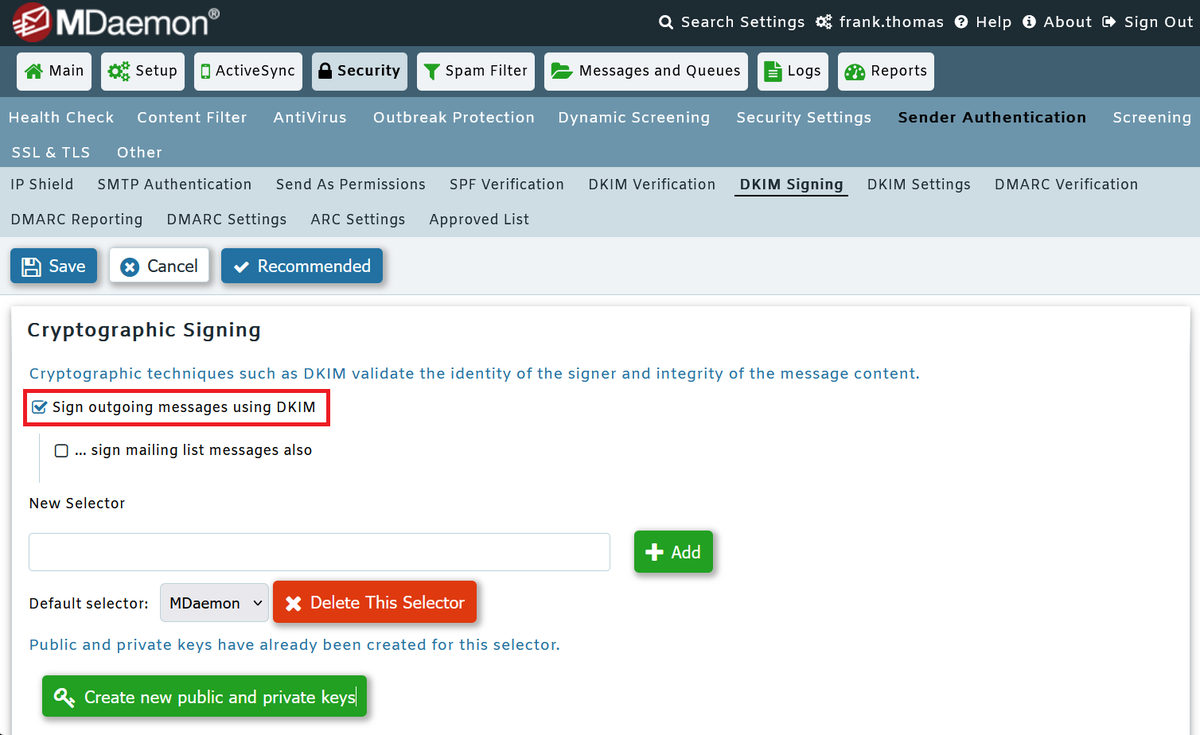
DKIM Signing Settings in MDaemon
- Publish a DMARC record at _dmarc.yourdomain.com (at minimum v=DMARC1; p=none), and align at least one of SPF or DKIM with your From: domain.
- For inbound DMARC control, MDaemon's options can be found under Security » Security Settings » Sender Authentication » DMARC Verification. The option "Honor p=reject when DMARC produces a 'FAIL' result" ends the SMTP session on failure. When that option is disabled, MDaemon instead inserts the X-MDDMARC-Fail-policy: reject header into the message. You can then use a Content Filter rule (Security » Content Filter) that acts on the presence of that header to move the message to the Spam Trap for admin review, exactly the workflow the customer above wanted, instead of relying on the per-user "Filter messages which fail the DMARC test into spam folders" option.
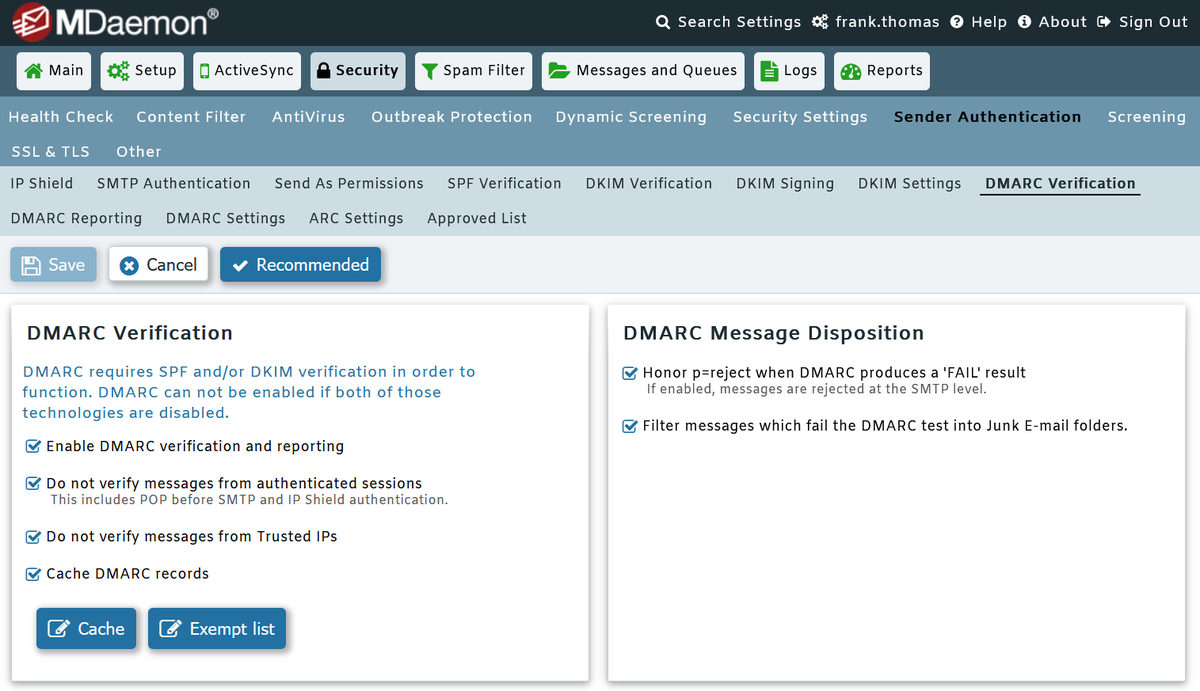
DMARC Verification Settings in MDaemon
4. TLS / SSL / Certificate or Secure Connection Issue
MDaemon can send using STARTTLS whenever the remote server advertises it. If the TLS handshake can't complete, whether from no common cipher, an invalid or expired certificate, or (most commonly) a firewall modifying the handshake, the session dies mid-negotiation and the message goes nowhere.
Real examples from support cases:
- Handshake killed right after STARTTLS: Two delivery-failure tickets showed the outbound session advertising and starting STARTTLS, then being abruptly closed with Winsock Error 10053 ("connection abort") immediately after 220 Ready to start TLS.
- Expired certificate froze the queue: An admin removed an expired certificate under Security » Security Settings » SSL & TLS » MDaemon and created a new one, after which users could send to the local domain but external mail "stuck in Remote queue (Frozen)."
- Domain-wide TLS negotiation failures: An organization reported many messages failing due to "tls negotiation failure," unsure whether its Let's Encrypt certificate was still valid.
Verified log snippet: connection dropped right after STARTTLS (anonymized):
<-- 250-STARTTLS
<-- 250 OK
--> STARTTLS
<-- 220 2.0.0 Ready to start TLS
Socket connection closed by the other side (how rude!)
* Winsock Error 10053
Connection closed
Troubleshooting:
- Suspect the firewall first. A handshake that dies immediately after --> STARTTLS / <-- 220 Ready to start TLS is the classic signature of a firewall's SMTP fixup / ESMTP inspection feature corrupting the negotiation. Disable "SMTP fixup," "ESMTP inspection," or "Managed SMTP" on the perimeter device (on Cisco ASA/PIX, no inspect esmtp or no fixup protocol smtp 25; SonicWall and Fortinet have equivalent SMTP-inspection toggles).
- Set MTU to 1500 on the router and verify the MTU on the MDaemon server. Winsock 10053 "usually occurs with routers, firewalls and proxies."
- Work around a single stubborn host by adding it to the No STARTTLS List at Security » Security Settings » SSL & TLS so MDaemon delivers to that host without encryption. If mail then flows, you've confirmed the fault is in TLS negotiation, not routing.
- Fix certificates at Security » Security Settings » SSL & TLS » MDaemon: check the box next to a valid certificate and click the star to set it as default, or reissue a free certificate via the Let's Encrypt tab ("Run Now"). Because "the servers must be restarted when a certificate changes," restart the SMTP/IMAP/POP servers afterward, then right-click the affected queue and Re-Queue any frozen messages.
- Note the nuance: a log entry stating “SSL certificate is not valid” during outbound delivery does not necessarily mean delivery has stopped; MDaemon often logs it and proceeds. A message that truly sticks in the Remote queue after a cert change points to the selected certificate being invalid/expired, which can be resolved by following the above steps.
5. Port 25 / SMTP Connectivity Timeout or Connection Refused
MDaemon delivers outbound mail on TCP port 25. If a firewall, ISP block, or network device prevents the outbound connection, or resets it mid-session, messages sit in the remote queue and eventually time out.
Real examples from support cases:
- Connection reset (10054): A hybrid Microsoft 365 + MDaemon customer couldn't send to an external domain, hitting "Socket error 10054 - Connection was reset by the other side!" The transcript showed a "530 5.7.0 Authentication required" response immediately before the reset: an authentication/relay configuration problem surfacing as a socket reset.
- Protocol/connection timeouts: Classic port-25 blockages log a socket connection that establishes but never receives a protocol banner, or a Winsock Error 10060 (connection timed out), ending with "Remote queue lifetime exceeded; message placed in retry queue."
Verified log snippet: connection reset (anonymized):
Thu 2021-10-21 12:50:23.536: --> 530 5.7.0 Authentication required
Thu 2021-10-21 12:50:23.779: <-- QUIT
Thu 2021-10-21 12:50:23.779: * Socket error 10054 - Connection was reset by the other side!
Thu 2021-10-21 12:50:23.779: SMTP session terminated (Bytes in/out: 108/292)
Troubleshooting:
- Confirm outbound port 25 is open. Many ISPs block it on non-business lines. Test with telnet mx-of-recipient.com 25 from the MDaemon server. Outbound server-to-server delivery must use port 25; this does not change even though MDaemon also has an SMTP SSL port (465, implicit TLS) configurable at Setup » Server Settings » Ports. That port is for encrypted client submission or an authenticated relay hop, not for MTA-to-MTA delivery: direct delivery to a recipient domain’s MX server normally uses destination TCP port 25. Enabling MDaemon’s inbound submission ports (465 or 587) does not change its outbound SMTP port. However, if MDaemon is configured to send through a smart host, that connection can use a different outbound port, such as 587, as required by the relay provider.
- Check AV / firewall / proxy interference on the MDaemon machine and at the perimeter. SMTP inspection and "maximum simultaneous connections" rules commonly cause resets and aborts (Winsock 10053/10054).
- For the M365-hybrid `530 Authentication required` reset, the real fix is configuration: ensure SMTP Authentication and the IP Shield are set so known/authenticated sources relay correctly (see Category 7). Set MTU to 1500.
- Review the Retry Queue (Queues » Mail Queues). Messages placed there after "Remote queue lifetime exceeded" are retried automatically; by default, MDaemon delays retries after a temporary error and keeps trying for up to two days before bouncing.
6. Remote Queue Stalled by MDaemon Service/Process Issue
Sometimes DNS, TLS, and the network are all fine, but messages pile up in the remote queue and never leave. The usual culprits are a hung delivery thread, a stalled AntiVirus/plugin process, a corrupt AV signature update, an expired security plugin, or third-party antivirus interfering with the MDaemon folders. In the worst cases, a compromised/abused account floods the queue.
Real examples from support cases:
- ~15,000 messages stuck; a restart fixed it: A customer had roughly 15,000 outbound items waiting to go out; restarting MDaemon got everything moving again.
- Mail enters the remote queue but never processes: We’ve received multiple tickets with: "the mails are stuck in the Remote Queue. The queue is not processed," and another where mail sent from Webmail to an external domain "immediately goes to the remote queue and they stay there."
- Queue flooded by abuse: One server had unknown external domains authenticating and flooding the remote queue "up to more than 1 million entries": a compromised-account / relay problem, not a delivery bug.
- AntiVirus / Windows Defender interference: Third-party AV scanning the \MDaemon folder, or a corrupt definitions update, is a documented cause of local/remote queue processing stalls (often surfacing as "Virus scanner reports invalid condition" and mail held in the Holding queue).
Troubleshooting:
- Restart MDaemon to clear a hung delivery thread. This is frequently the fastest fix, as in the 15,000-message case.
- Check the AntiVirus log. A corrupt update holds mail in the Holding/Local queue. Run Security » AntiVirus » AV Updater » "Update AV signatures now," then Re-Queue the held mail.
- Exclude the MDaemon folders from any third-party AV (including Windows Defender) real-time scanning; scanning \MDaemon\ corrupts queue and definition files and stalls processing.
- Confirm the AntiVirus license (registration key) hasn’t expired: this means the MDaemon AntiVirus registration key (the AVKey), not a separate third-party subscription. Virus scanning is disabled once the license lapses, and a scanner reporting an invalid or failed state can hold affected messages in the Local/Holding queue until it’s renewed or AV scanning is temporarily disabled.
- Use the queue tools. In MDaemon Remote Administration under Messages and Queues, review the contents of the queues for messages that can be released or redelivered. The Holding Queue collects messages that threw exceptions during AntiVirus/AntiSpam/Content Filter processing; Release delivers them regardless of errors, while Re-Queue sends them back through processing.
If the remote queue is flooding, you may have an abused account or relay hole: reset the affected credentials, require SMTP authentication, and lock down the IP Shield so only your own domains/IPs can relay. Also verify that no content filtering rules are inadvertently placing messages in the remote queue.
7. Invalid Recipient or Routing/Addressing Issue
The message leaves MDaemon, but the recipient address is wrong or unknown, the return path is invalid, or a routing/relay rule blocks it. These produce 550 Recipient unknown, 550 Sender unknown, or per-recipient failures within an otherwise successful send.
Real examples from support cases:
- Recipient unknown: A message failed with 554 5.7.0 ... smtp; 550 <info@domain> Recipient unknown returned by the hosted receiving server.
- "Sender found in recipient's blocked senders" with an empty block list: An admin saw 550 5.1.1 Recipient unknown followed by "Sender found in recipient's blocked senders," even though the recipient block-list file was empty. The actual problem was simply that the recipient address didn't exist; the block-senders line was a red herring.
- Mailing-list member rejected (no valid return path): A mailing list spanning two MDaemon servers failed for remote members with 550 5.7.1 Sender unknown. Because list mail uses an empty envelope sender (MAIL From:<>), MDaemon logged "Message has no valid return path, it was deleted."
- Per-recipient split delivery: A user emailing many recipients at one overseas domain had roughly half delivered and half returned for an authentication failure, prompting an "is there a restriction to a single domain?" question; in fact the far end was rejecting a subset of addresses.
- Forwarding of external mail failed: A user forwarding to a personal Gmail account got "undeliverable forwarded message" only when the original sender was external, a forwarding/addressing rule issue.
Verified log snippet: recipient unknown & blocked-senders red herring (anonymized):
Sun 2023-12-10 12:22:58.838: <-- RCPT TO: <unknown.user@familyco.example>
Sun 2023-12-10 12:22:58.838: --> 550 5.1.1 Recipient unknown <unknown.user@familyco.example>
Sun 2023-12-10 12:22:58.838: Sender <user@familyco.example> found in recipient's blocked senders
Verified log snippet: mailing list, no return path (anonymized):
Sun 2025-06-01 14:51:12.269: --> MAIL From:<> SIZE=28558
Sun 2025-06-01 14:51:12.292: <-- 550 5.7.1 Sender unknown
Sun 2025-06-01 14:51:12.293: Message has no valid return path, it was deleted
Troubleshooting:
- Verify the recipient address is spelled correctly and still exists; 550 Recipient unknown is an authoritative statement from the remote server.
- For "blocked senders" with an empty list, don't chase the block-senders file; the real issue is a non-existent recipient mailbox. Confirm the address.
- For mailing lists across servers, ensure the receiving server accepts the list's empty return path (MAIL From:<>), or configure the list/recipient server so it doesn't reject the null sender; verify IP Shield and authentication settings between the two MDaemon servers.
- For forwarding failures, review the account's forwarding rules and make sure MDaemon uses a valid local envelope sender when forwarding external mail onward (so the downstream server doesn't reject a foreign return path).
- Check custom routing and Content Filter rules that could misroute or block specific domains.
General Outbound Troubleshooting Checklist
Before opening a support ticket, work through this sequence:
- Find the message in the SMTP-out log (\MDaemon\Logs\) by Message-ID or Session-ID and read the full session transcript end to end.
- Identify where it broke in the transcript: DNS lookup → SMTP connection → STARTTLS → MAIL/RCPT → DATA. The last successful step tells you the category:
◦ Fails at the DNS lookup → Category 1
◦ Connects, then a 5xx/4xx rejection citing a blocklist or reverse DNS → Category 2
◦ Bounce cites SPF/DKIM/DMARC → Category 3
◦ Dies right after STARTTLS with a socket error → Category 4
◦ Never gets a banner, or resets with 10054/10060 → Category 5
◦ Never leaves the queue at all → Category 6
◦ Recipient unknown / Sender unknown / no return path → Category 7 - Read the remote server's exact reply code: 4xx is temporary (MDaemon will retry), 5xx is permanent.
- Check the queues (Queues » Mail Queues): are messages sitting in Remote, Retry, Holding, or Bad?
- Verify the fundamentals: valid PTR/reverse DNS matching your HELO, published SPF/DKIM/DMARC, a valid selected SSL certificate, outbound port 25 open, and AV/firewall not interfering.
- Test in isolation: send via Webmail, to a different domain, and from a different account to narrow down the variable.
When to contact MDaemon support: if the transcript is inconclusive, if you see repeated software exceptions or Holding-queue errors, if the queue floods unexpectedly, or if delivery still fails after you've corrected DNS, authentication, and certificate basics. Have your registration key, MDaemon version, and a full anonymized SMTP-out transcript ready, and remember to scrub real domains, addresses, and IPs before sharing logs.
Most outbound delivery problems trace back to one of these seven categories, and in nearly every real case above, the answer was visible somewhere in the log transcripts.