Few support tickets are as common, or as frustrating, as "I was expecting an email and it never showed up." As an MDaemon administrator, your task is to determine the cause, which could be anywhere along a chain that stretches from the sender's outbox, across the internet, through your DNS and security layers, into MDaemon's queues and filters, and finally out to the user's mail client.
In this post, we provide a checklist for working that chain methodically. It starts with the two steps that answer the most important question (did the message ever reach your server, and if it did, what did MDaemon do with it?) and then walks through the configuration areas the logs most often point you toward.
This post covers inbound mail: messages that should have arrived at your server and didn't. If the problem is the reverse (a message one of your users sent that never reached an outside recipient), we'll cover that in an upcoming companion post on the most common outbound delivery failures, with real log excerpts and fixes, so check back soon for that.
Step 1: Confirm the basic facts before touching the mail server
You should not need to open a single log until you have confirmed what you are actually looking for. A surprising share of "missing" emails never existed, went to a different address, or were sent somewhere else entirely.
- Get the exact recipient address. Confirm spelling, the domain, and that there is no typo (a transposed character, .co vs .com, an old domain). Confirm it is a domain MDaemon actually hosts.
- Confirm the sender actually sent it, and get proof. Ask for a copy in their Sent Items, the exact date/time, the From address, and, especially important, whether they received a bounce-back (NDR) message. If the sender got a bounce, request a copy: it shows the exact error and which server returned it, and you may discover it was never your server that rejected it.
- Get a searchable identifier. The single best value to search by is the Message-ID header, which is unique to each message and appears at every processing step in MDaemon's logs. If the user can produce the original message or its headers, you have your search key. If not, you can search by sender address and date.
Note: If you're not seeing a Message-ID entry in the message headers or logs, make sure MDaemon is inserting them via Setup | Preferences | Headers (MDaemon Remote Administration navigation path).
If you can't establish that the message was ever actually sent, stop here. You may be chasing a message that doesn't exist.
Step 2: Trace the message in the logs
Once you know what you're looking for, go straight to the logs. A quick search tells you whether the message ever reached MDaemon and, if it did, exactly what MDaemon did with it. That one answer determines which of the remaining steps should be taken next.
- Find your log files. By default, they can be found in \MDaemon\Logs\. To confirm or change the location and the level of detail being logged, go to Logs » Log Settings » Log Mode (in Remote Administration).
- Start with the MDaemon-all.log. It contains every type of logging except web server activity: SMTP, POP3, and IMAP sessions, Content Filter and AntiVirus processing, and the routing entries that show where each message was placed (for example, when a messages passes through a particular queue). MDaemon also writes separate logs for each activity (such as the SMTP-(in), SMTP-(out), Routing, and Screening logs), which are handy once you know which stage you need to zoom in on. In current versions the file names include the date, so make sure you open the right day.
- Search by Message-ID. The Message-ID header appears in the inbound SMTP session, in AntiVirus and Content Filter processing, and in the routing entry that shows exactly where MDaemon placed the message. The quickest way to search for it is to right-click in the log pane of the MDaemon configuration session (via the Windows Start menu) and choose Search: MDaemon searches every log file for the string and compiles each matching session transcript into a single text file. You can also open the log file in Notepad or Notepad++ for additional searching tools.
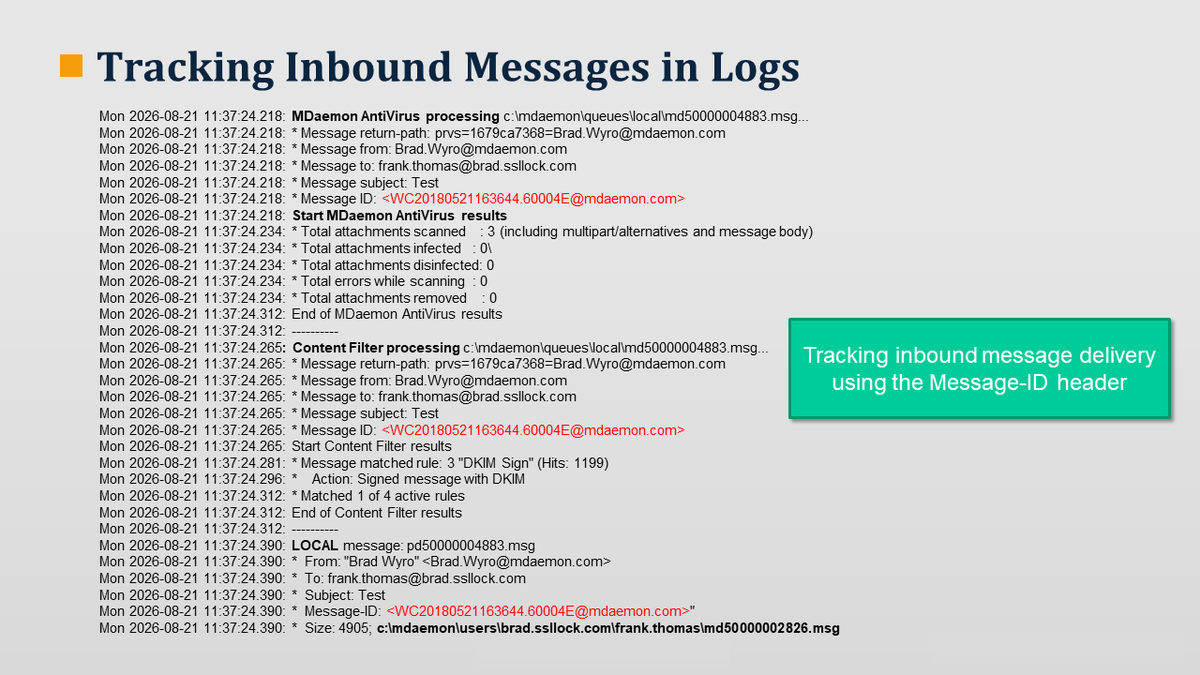
Note: If you don’t see a Message-ID header, ensure MDaemon is configured to add one (Setup | Preferences | Headers).
- No Message-ID? Search by sender and date. Open the log for the date the user gave you and search for the sender's address. If there is no mention of it, check the day before and the day after as well; time zones and delivery delays can sometimes push sessions across midnight.
- Use the Queue and Statistics Manager's Log page (via an MDaemon configuration session) to make the transcript easier to read. The Log page parses a log file into a list of sessions showing the session type, host, sender, recipient, size, date, and whether it succeeded. Double-click a session to see just that transcript rather than scrolling through the raw file.
- Read the session. In an SMTP transcript, lines beginning with --> are what MDaemon sent and lines beginning with <-- are what the other server sent.
Here is an example from the MDaemon-SMTP(in) log:
Mon 2026-10-19 14:46:31.306: 05: [00000010] Session 00000010; child 0002
Mon 2026-10-19 14:46:31.306: 05: [00000010] Accepting SMTP connection from 192.168.100.101:49769 to 192.168.100.102:25
Mon 2026-10-19 14:46:31.307: 03: [00000010] --> 220 mail.example.com ESMTP Mon, 19 Oct 2026 14:46:31 -0500
Mon 2026-10-19 14:46:31.312: 02: [00000010] <-- EHLO example.com
Mon 2026-10-19 14:46:31.313: 03: [00000010] --> 250-mail.example.com Hello example.com [192.168.100.101], pleased to meet you
Mon 2026-10-19 14:46:31.313: 03: [00000010] --> 250-ETRN
Mon 2026-10-19 14:46:31.313: 03: [00000010] --> 250-AUTH LOGIN PLAIN
Mon 2026-10-19 14:46:31.313: 03: [00000010] --> 250-REQUIRETLS|Mon 2026-10-19 14:46:31.313: 03: [00000010] --> 250 SIZE|
Mon 2026-10-19 14:46:31.313: 02: [00000010] <-- MAIL From:<user.one@example.net> SIZE=4976
Mon 2026-10-19 14:46:31.313: 03: [00000010] --> 250 2.1.0 Sender OK
Mon 2026-10-19 14:46:31.314: 02: [00000010] <-- RCPT To:george.washington@example.com
Mon 2026-10-19 14:46:31.314: 01: [00000010] Sender attempted to deliver message to unknown address
Mon 2026-10-19 14:46:31.314: 03: [00000010] --> 550 5.1.1 Recipient unknown george.washington@example.com
Mon 2026-10-19 14:46:31.715: 02: [00000010] <-- QUIT
Mon 2026-10-19 14:46:31.715: 03: [00000010] --> 221 2.0.0 See ya in cyberspace
Mon 2026-10-19 14:46:31.716: 04: [00000010] SMTP session terminated (Bytes in/out: 751/2345)
Mon 2026-10-19 14:46:31.716: 01: ----------
When MDaemon refuses a message during the SMTP session, it answers with a 5xx response (permanent) or a 4xx response (temporary), and the response text usually states the reason: a spam score over the rejection threshold, a screening rule, a size limit, a failed SPF or DMARC check, an over-quota mailbox, and so on. Not everything that makes a message go missing is a refusal, though. An IP-level block closes the connection before the SMTP conversation starts (that is the Screening.log case below), and spam tagging, Content Filter actions, IMAP filters, and forwarding all happen after MDaemon has already answered “250 Ok, message saved”. So when the transcript ends in a refusal, the response code is your map to Steps 4 through 9; when it ends in 250 Ok, message saved, the Content Filter and routing entries for that Message-ID are your map instead.
- Nothing in MDaemon-all.log? Check Screening.log. If MDaemon refused the connection at the IP level, the session was dropped before anything was written to the main logs. The Screening.log file records each connection blocked by IP address along with a short reason, for example: Dynamic screening added 203.0.113.5 for 10 minutes; tried sending to 3 unknown recipients. To find the sender's IP, look up the MX records for the sender's domain (MXToolbox works well), resolve the MX host to its IP address, and search Screening.log for it. This is harder with large providers whose outbound IPs differ from their MX hosts, so for Gmail, Microsoft 365, and similar senders you may need to work from the bounce message instead.
- Still nothing anywhere? The message most likely never reached your server. The sender's bounce message, or a conversation with the sending server's administrator, is your next move. If a gateway such as SecurityGateway sits in front of MDaemon, check its logs and quarantine before concluding the message was never sent.
What the logs show tells you where to go next:
- Accepted and routed to the user's mailbox: the server has it. Jump to Step 6 (account settings that move or forward mail) and Step 12 (client-side issues).
- Accepted, but the transcript shows a Spam Filter or Content Filter action: go to Steps 4 and 5.
- Accepted, but no routing or delivery entry: it may be stuck in a queue. Go to Step 3.
- Refused during the SMTP session: the response code tells you which layer refused it. Spam score (Step 4), screening (Step 7), size (Step 8), authentication (Step 9), or quota (Step 6).
- Nothing in any log: the message never reached MDaemon. Either it was never sent, it was rejected or quarantined upstream, or something sitting between the internet and your server dropped it; see Step 10. For messages your own users sent that never reached an outside recipient, see Step 11.
Step 3: Check the mail queues for stuck or held messages
If the message reached MDaemon but hasn't been delivered, it may still be sitting in a queue. Open Messages and Queues in MDaemon Remote Administration and inspect:
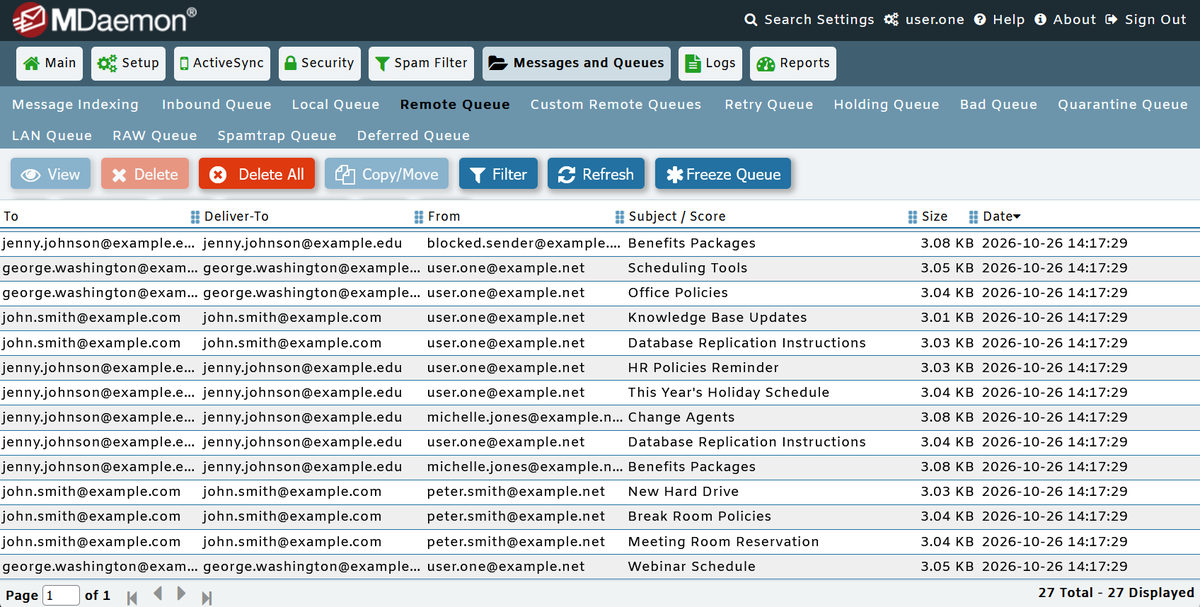
- Remote and Retry queues: for mail bound for external recipients. If messages are stuck here, MDaemon can't hand them off to the receiving server. Common causes include DNS failures resolving the recipient's MX record, inability to connect to the receiving server, or the receiving server issuing a temporary (4xx) failure. The MDaemon-SMTP-(out).log will show which. The Retry Queue governs how long a message keeps retrying before it is bounced. The default is that a message can remain undeliverable in the retry queue for 2 days before being removed and returned.
- Local queue: for mail addressed to local users. Messages here normally clear in seconds. If they pile up, look in the queue folder itself (by default \MDaemon\Queues\Local) for stale .LCK lock files. MDaemon creates these while it is working on a message and normally removes them when it is done; if one has been left behind, stop the MDaemon service, delete the .LCK file, and start MDaemon again. Also look for abnormally large messages or disk I/O bottlenecks, and check the System log.
- Holding queue: MDaemon moves messages here when they cause a software exception during AntiVirus, AntiSpam, or Content Filter processing. A message in the Holding queue was never delivered and will stay there until you act. There is also an option to hold mail if the sending or receiving account is disabled or frozen. Process it via the Release or Requeue button in MDaemon Remote Administration. Note the differences between these two actions:
- Release - releases the selected message or all messages from the displayed queue. MDaemon will attempt to deliver the messages regardless of errors encountered. For example, they will not be returned to the Holding Queue even if they encounter the same errors that caused them to be moved there originally.
- Requeue - This option "re-queues" the selected message or all messages contained in the queue and attempts to process them normally for delivery. If you attempt to process messages contained in the Holding queue, Bad queue, or the like then the messages may encounter the same errors that put them there in the first place and return them to the same queue.
- Bad queue: messages with no valid recipient data, exceeded hop counts (mail loops), or those a Content Filter rule explicitly routed here.
The various mail queues found under Messages and Queues in Remote Administration will show the recipient, Deliver-To header, subject, size, and age of every message in each queue, so you can spot a stuck message quickly.
Step 4: Check spam filtering and the spam trap
If the message arrived but the user can't find it, spam handling is the most likely culprit. MDaemon's Spam Filter assigns each message a score and acts based on thresholds you configure:
- The default spam threshold is 5.0. By default, messages that score 5.0 or above are tagged as spam. There is a separate, higher SMTP rejection threshold whose default value is 12.0; any message scoring at or above it is refused outright during the SMTP session rather than being delivered. A rejected message never enters the user's mailbox at all.
- Check where flagged spam goes: it may be delivered with a subject tag, moved into the user's Junk E-mail / Spam IMAP folder, routed to the spam trap public folder, or deleted. If it's in a spam folder or trap, the message is recoverable. Release it and, if it was a false positive, feed it back to Bayesian learning to improve spam filter accuracy.
- Check the Allow List / Block List. An address on the Block List (by sender) has points added to its score; a trusted sender may need to be on the Allow List. Note that MDaemon can also use each user's personal contacts and allowed/blocked senders automatically.
- If spam scores drift over time, the Bayesian engine may need retraining.
Step 5: Check Content Filter rules
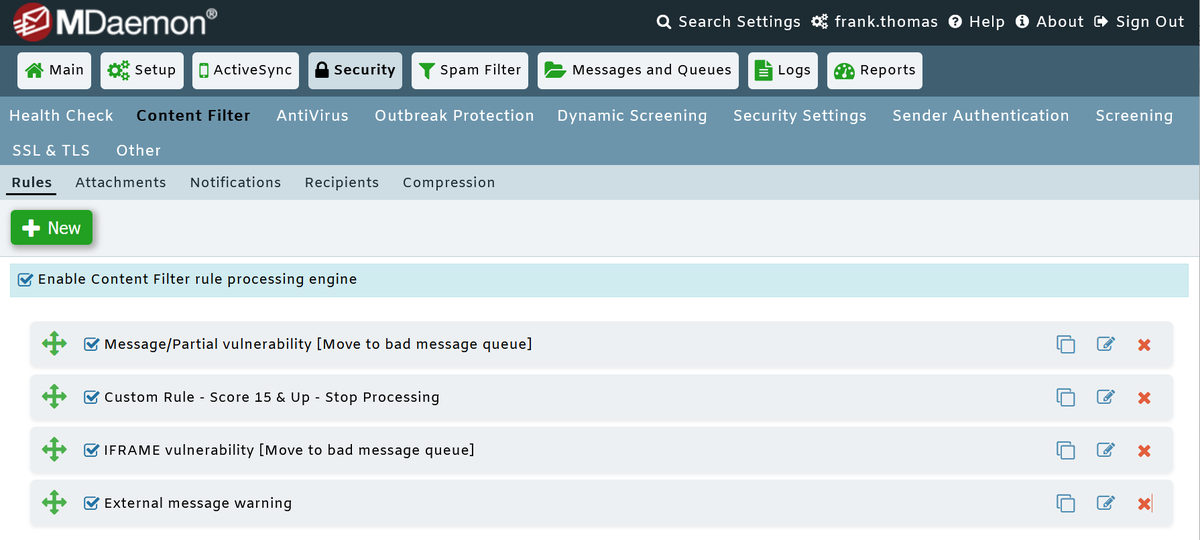
MDaemon's Content Filter (Security » Content Filter) is powerful and, because rules run in order and can act silently, can be a frequent cause of missing mail. A rule can delete a message, redirect or forward it elsewhere, move it to the Bad or a custom queue, or copy it to another user, all without an obvious trace in the message's SMTP session. The place to look is the Content Filter log: look in MDaemon-all.log or the daily MDaemon-YYYY-MM-DD-ContentFilter.log (both can be found in \MDaemon\Logs\, and the same entries appear on the Content Filter tab of the MDaemon main display) for the Content Filter processing block for the Message-ID; a "Message matched rule:" line tells you which rule was triggered. Review your rule list top to bottom, paying special attention to:
- Rules with a Delete Message action (the message is simply gone).
- Rules that redirect or move messages to another address, folder, or queue.
- Rules keyed on subject text, sender, attachment type, message size, or spam score that might catch legitimate mail as collateral.
- The order of rules and any Stop Processing Rules action that changes which later rules apply.
Keep in mind that a Content Filter rule that deletes a message leaves no trace in the main logs beyond the Content Filter entry showing that the rule matched, so the rule list itself is a good place to look.
Step 6: Check account-level settings
The recipient's own account settings can divert or block mail. In the Account Editor (Accounts » Account Manager), check:
- Forwarding: is the account forwarding mail (and possibly not keeping a local copy)?
- Autoresponders and IMAP Filters: MDaemon's server-side IMAP Filters can move, delete, redirect, or forward incoming mail on a per-account basis. A stray filter can cause mail to "disappear" from the Inbox.
- Aliases: is the address the user expects actually an alias pointing to the right account? Mis-routed aliases can send mail to the wrong mailbox.
- Account status: is the account Disabled (MDaemon won't accept mail for it at all) or Frozen (can receive but cannot send/check)?
- Quota: is the account over quota? By default, an over-quota account stops accepting incoming mail until the user deletes some emails. The server sends the temporary 452 error ("Requested action not taken: insufficient system storage") by default, or optionally the permanent 552 error ("Requested mail action aborted: exceeded storage allocation"), and the sender should get a bounce.
- Mailing list / group membership: for list mail, confirm the user is actually a member and that list-specific settings (like DMARC-based rejection of posts from restrictive domains) aren't blocking delivery.
Step 7: Check security screening that blocks mail before it's logged
If Step 2 turned up a Screening.log entry, or a refusal in the first few lines of the SMTP session, one of MDaemon's security layers is usually responsible. Most of them can be found under Security » Security Settings and the Screening section:
- Dynamic Screening (Security » Dynamic Screening): tracks the behavior of incoming connections and temporarily blocks IPs that fail authentication too many times within a set period; it can also freeze accounts that are being attacked. The blocks it creates are kept in the Dynamic Block List, and it is the engine the SMTP Screen relies on to carry out its blocks.
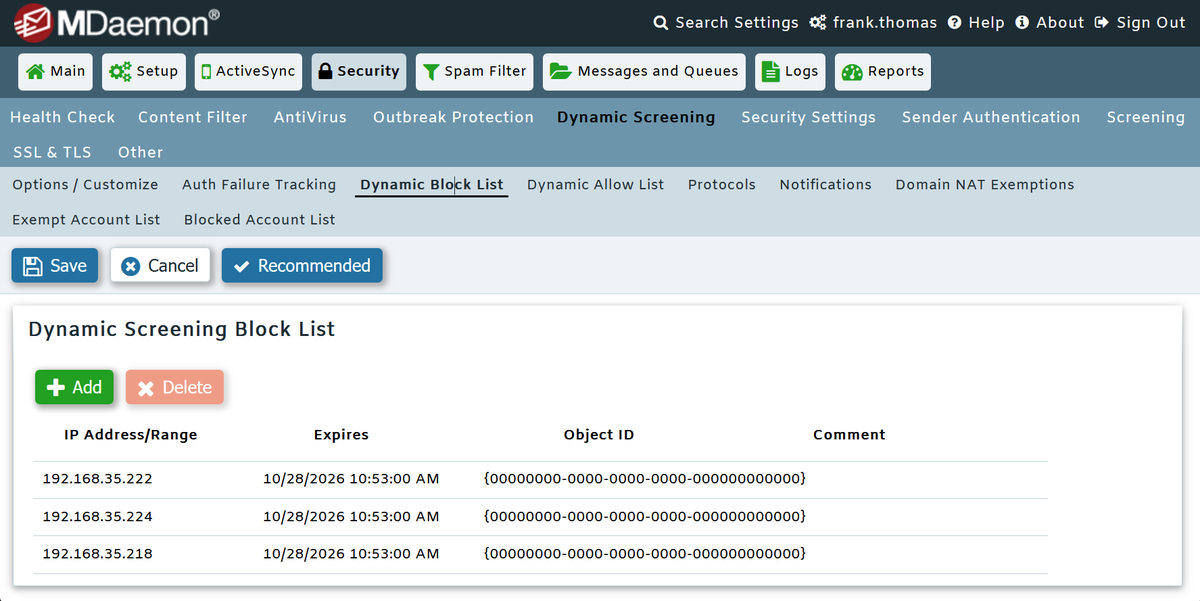
- SMTP Screen (Security » Screening » SMTP Screen): blocks IPs that connect too many times within a set number of minutes, cause too many "Recipient unknown" (failed RCPT) errors, or send too many RSET commands. This is the setting behind the "tried sending to 3 unknown recipients" entries in Screening.log. A legitimate sender whose server has been probing old or mistyped addresses, or that shares an outbound IP with one that has, can end up on the Dynamic Block List and be refused. (In older MDaemon versions these settings were part of Dynamic Screening itself.)
- IP Screen / Host Screen: explicitly refuses connections from specific IPs or hosts.
- Location Screening: blocks connections by country. If the sender is in a blocked country, their mail never gets accepted.
- DNSBL / DNS Block Lists: MDaemon checks the connecting server's IP against blocklists; the pre-configured default in new installs is zen.spamhaus.org. Note the default action is not rejection: by default, a DNS-BL match is flagged only. MDaemon inserts an X-MDDNSBL-Result header and adds 3.0 points to the spam score, unless you have enabled the option to refuse block-listed IPs during the SMTP session. If you have turned on refusal, a sender whose mail server IP is blocklisted will be rejected.
- Greylisting: deliberately issues a temporary failure to unknown senders on first contact, expecting a retry. This delays legitimate mail (sometimes by minutes, occasionally much longer), so a "missing" email may simply not have been retried yet.
- Tarpitting, Sender/Recipient Block Lists, IP Shield, and SMTP authentication requirements can all refuse mail as well. Note the Recipient Block List operates on the SMTP envelope and refuses mail to listed addresses.
A 550 5.7.1 Sender unknown ... (IP Shield) or a Dynamic Screening entry in the logs points to one of these.
Step 8: Check message size and attachment limits
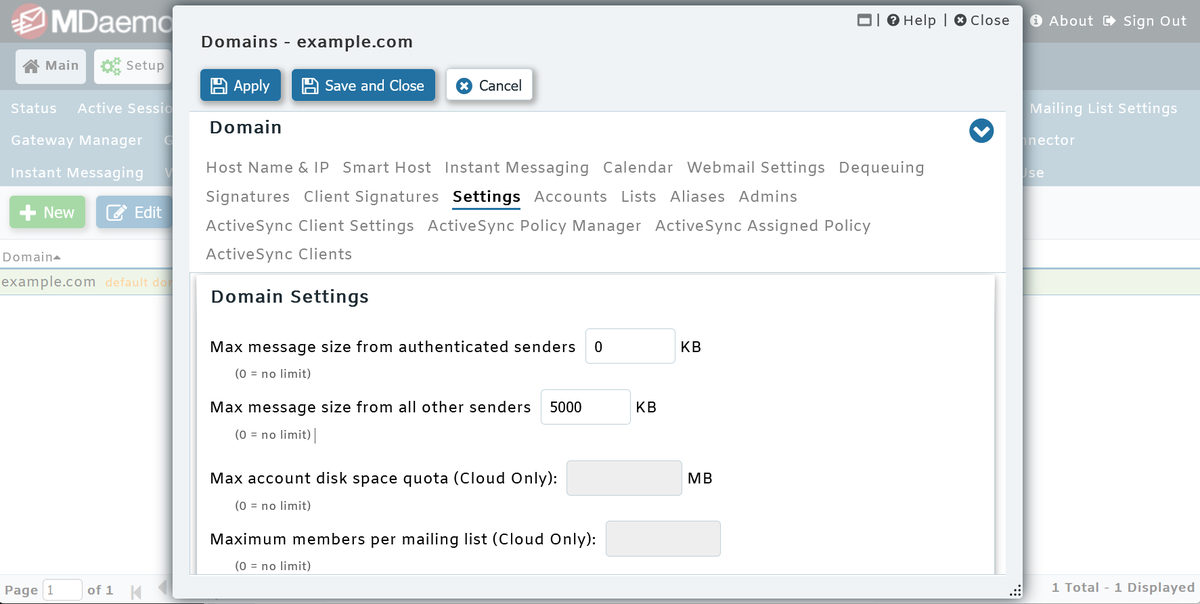
If the "missing" message was large or had an attachment, size limits may have refused it. MDaemon enforces size caps in several places: a global maximum acceptable SMTP message size, per-domain limits (Main » Domain Manager » [domain] » Settings in Remote Administration), with separate limits for authenticated vs. all other senders), and Content Filter rules that filter based on message size. MDaemon Webmail also caps attachment size, set to 25 MB by default for new installs, adjustable via the Domains.ini file in \MDaemon\WorldClient. A message over the limit is refused during the SMTP session, and the sender should receive a bounce indicating the size rejection.
Step 9: Check DNS and email authentication (SPF, DKIM, DMARC)
Authentication failures are an increasingly common reason inbound mail is rejected or quarantined. Under Security » Sender Authentication:
- SPF: if configured to send a 550 error on a Fail result, mail from senders whose IP isn't authorized in their SPF record is refused.
- DKIM Verification: failed DKIM feeds into DMARC alignment and spam scoring (it has no direct fail action of its own).
- DMARC Verification: by default, MDaemon honors a p=reject policy, refusing messages that fail DMARC when the sender's domain publishes that policy, and it can filter p=quarantine failures into the Junk E-mail folder.
- Routing DMARC failures to the Spam Trap: if the option Honor p=reject when DMARC produces a 'FAIL' result is disabled, MDaemon accepts the message and inserts an X-MDDMARC-Fail-policy: reject header instead. Some administrators pair that with a Content Filter rule (Security » Content Filter) that acts on the presence of the header and moves the message to the Spam Trap for review, rather than relying on the per-user "Filter messages which fail the DMARC test into spam folders" option. If your server is set up this way, a "missing" message from a domain with a broken DMARC setup is probably sitting in the Spam Trap.
A legitimate sender with a broken SPF/DKIM setup can therefore be rejected by your server through no fault of the user.
Also verify the fundamentals of your own domain's DNS if inbound mail broadly isn't arriving: correct MX records pointing to your server, and a valid PTR / reverse DNS record.
Step 10: Check for a firewall, gateway, or other device between the sender and MDaemon
If the SMTP transcript for the message is missing, cut off partway through, or never reaches the line that confirms MDaemon accepted it (250 Ok, message saved <Message-ID>, followed by SMTP session successful), something between the sender and MDaemon may have removed it. MDaemon can only log what actually reaches it, so these are the usual suspects:
- A firewall or UTM appliance with SMTP inspection. Many firewalls (Cisco ESMTP inspection, SonicWall, Fortinet, WatchGuard, and others) proxy or inspect port 25 traffic by default. They can drop a session mid-transfer, reject commands or extensions they don't understand (STARTTLS and large messages are common casualties), strip attachments, or time out before the DATA phase completes. In MDaemon's log this looks like sessions that start normally and end abruptly without a 250, or the same sender retrying every few minutes, while the sending server reports a connection reset or timeout on its side. Check the firewall's SMTP inspection or application-layer gateway settings and its logs for the sender's IP, and disable inspection for traffic to MDaemon if it isn't needed.
- An external gateway or filtering service. If SecurityGateway, a cloud filtering service, or your ISP's relay sits in front of MDaemon, the message may have been quarantined or rejected there and never forwarded. Check that device's message log and quarantine for the sender and Message-ID before concluding the message was never sent. The same applies in reverse to outbound mail that relays through a gateway or smart host.
- Antivirus software on the MDaemon server itself. Desktop or server antivirus products that scan the \MDaemon\ folder tree can quarantine or delete a message file straight out of a queue folder. The SMTP log then shows a successful acceptance, but the routing log never shows the message being delivered. Exclude the MDaemon directory and its subfolders from real-time scanning and let MDaemon AntiVirus handle message scanning.
- A load balancer, NAT device, or reverse proxy that rewrites the source IP can also cause Screening, IP Shield, and Location Screening rules to fire on the wrong address. If the connecting IP in the transcript is your own edge device rather than the sender's, expect those checks to behave unexpectedly until the device is configured to pass the real client IP.
The quickest way to isolate this is a telnet test to port 25 from outside your network. If you can't complete a full SMTP conversation through to “250 Ok, message saved”, the problem is upstream of MDaemon. The same devices cause outbound failures in the other direction, most visibly as TLS handshakes that die right after STARTTLS. Our upcoming post on outbound troubleshooting will cover those examples.
Step 11: For outbound problems, is your own server the one being blocked?
Flip the scenario: if your user sent a message that never arrived at an external recipient, the problem is on the outbound side: your server's reverse DNS and HELO name, its IP reputation, your SPF/DKIM/DMARC records, or a TLS or port 25 problem between you and the receiving server. Start with MDaemon-SMTP-(out).log. The remote server's rejection appears on the received-reply (<--) lines and usually states the reason. For a full walkthrough of the seven most common outbound failures, with log excerpts and the fixes for each, watch for our upcoming companion post on outbound delivery issues, coming soon.
Step 12: Rule out client-side and sync issues
If the logs prove MDaemon received and delivered the message locally, the problem is on the client side:
- Compare against Webmail. Have the user log into MDaemon Webmail and check the folder there. If the message is present in Webmail but missing in Outlook or Thunderbird, the server has it and the issue is the desktop client.
- IMAP folder subscriptions: the user may simply not be subscribed to the folder the message landed in. New/nested folders often need to be subscribed before they appear.
- Client-side rules/filters: Outlook and Thunderbird rules can move or delete mail locally. Review and disable any client-side rules that you may find suspicious.
- POP3 "leave a copy" behavior and multiple clients: a second device pulling mail via POP3 and deleting from the server can make messages "vanish" from the user's main client.
- New Outlook IMAP quirks: the New Outlook client has documented IMAP sync limitations; if mail shows in Webmail and classic Outlook but not New Outlook, it's a known client-side issue that Microsoft addresses through client updates.
Preventing the next ticket
A few proactive measures dramatically reduce "missing email" tickets:
- Make sure the midnight statistics report reaches someone who reads it. MDaemon emails the postmaster a statistics report every night covering message counts, spam and viruses blocked, and the number of messages currently sitting in each queue. The option “Send stats report to postmaster at midnight” can be found under Setup » Preferences » Miscellaneous and is enabled by default; the report also goes to any addresses listed on the Content Filter's Recipients screen. Watch for remote and retry queue backups that signal a delivery problem. For the Holding queue specifically, you can also have MDaemon email a periodic summary from Setup » Mail Queues/DSN » Holding Queue (in Remote Administration).
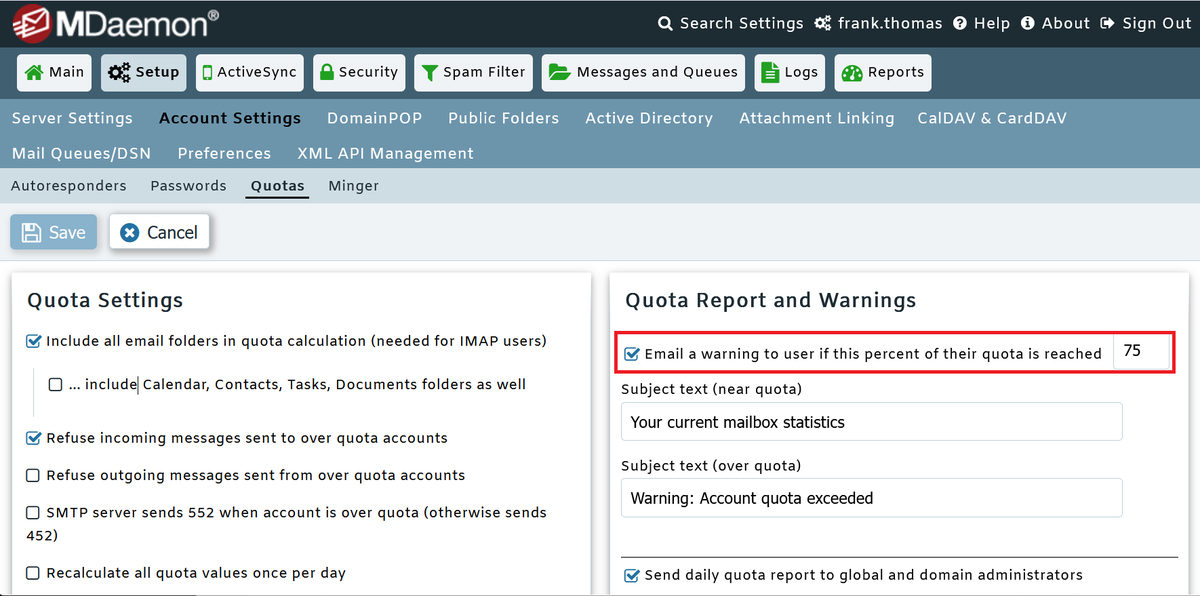
- Enable quota warnings and the daily quota report (Setup » Account Settings » Quotas) so users are warned before they hit their limit. Over-quota mailboxes are a recurring cause of refused inbound mail.
- Allow-list trusted senders and partners - carefully. Allow-listing lets important mail bypass spam handling, but it is also the easiest way to let spoofed mail straight through: a match on Allow List (by sender) subtracts 100 points from the spam score by default, and Allow List (no filtering) skips the spam filter entirely. You can follow a few rules to keep it safe. Allow-list specific addresses rather than whole domains, and never a free email domain like gmail.com, since anyone can get an address there. Never allow-list your own domains; those are exactly what phishers forge. Prefer entries backed by authentication: the Allow List (automatic) option to only allow-list addresses that authenticate with DKIM is there for this reason. Double-check every entry for typos, because a misspelled address either does nothing or quietly allow-lists an unfamiliar address. And review the lists periodically, removing partners and vendors you no longer work with.
- Get SPF, DKIM, DMARC, PTR, and HELO right for your own domains, so your outbound mail isn't getting blocked, and audit them periodically. Our upcoming outbound post will cover how to set up and verify each of these.
- Use the MDaemon Health Check (Security | Health Check in Remote Administration) to review your security settings against their defaults and catch a misconfiguration that's silently blocking mail.
- Document your Content Filter and Screening rules so you (or a colleague) can quickly recognize which rule caught a message.
The recommended workflow
When the next "where's my email?" ticket gets submitted, confirm the basic facts, then go straight to the logs. A Message-ID or sender search tells you in minutes whether the message reached your server and what MDaemon did with it, and that answer should point you to the right place: a queue, a filter, an account setting, a screening rule, a size or authentication check, or the user's email client. If the main logs show nothing, check Screening.log, then the firewall, gateway, or other device sitting in front of MDaemon, and if the message isn't there either, the evidence points off your server entirely. Worked in that order, you should be better equipped to track down even the most mysterious missing message.