In 2025, spam and phishing continue to be significant threats, with spam making up over 46.8% of email traffic
and the volume of phishing emails increasing sharply. Phishing attacks are becoming more sophisticated, with a large percentage of AI-generated campaigns bypassing traditional filters. As a result, 96% of US adults are targeted by at least one scam every week, and businesses are experiencing growing financial losses from attacks like Business Email Compromise (BEC).
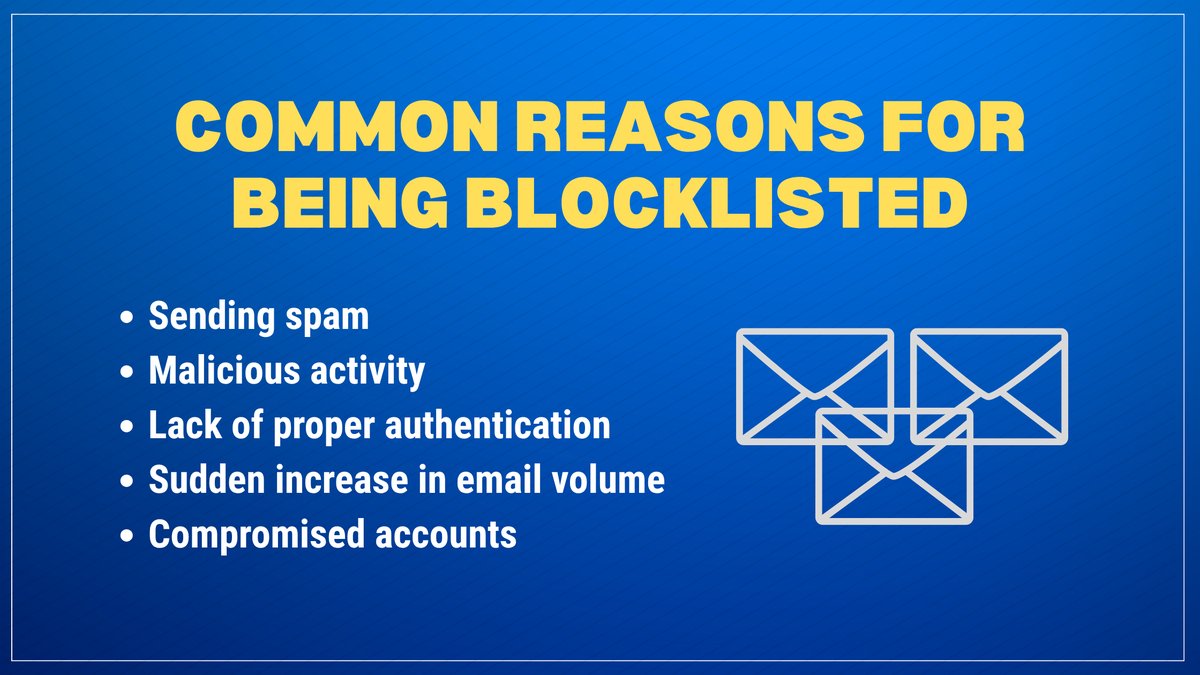
With the prevalence of spam & phishing attacks circulating the globe in massive amounts, it becomes increasingly important for email administrators to understand the potential causes of their IP address ending up on a blocklist. Spammers employ all kinds of tricks to try to send out as many spam messages as possible without revealing their identities. They do this through various techniques such as social engineering, employing malware, botnets, forging of message headers, and exploiting weaknesses in email systems or network infrastructures. For the spammer, it’s basically a numbers game. It costs next to nothing to send out thousands of spam messages, and if even a small handful of people click on a link or purchase a product advertised in a spam message, the spammer can profit.
If your email infrastructure is not properly secured, then you risk being infected with malware and becoming part of a spam botnet. Even if your server is not infected with malware, if your firewall and mail server security settings are not configured properly, your IP address could wind up on a blocklist.
To protect your mail server from being blocklisted, consider the following recommendations: